
Export a CSV report
CSV reports in SiteHive allow you to export Noise, Dust, and Vibration event data for detailed analysis. Go to the Reporting / CSV Reports page.
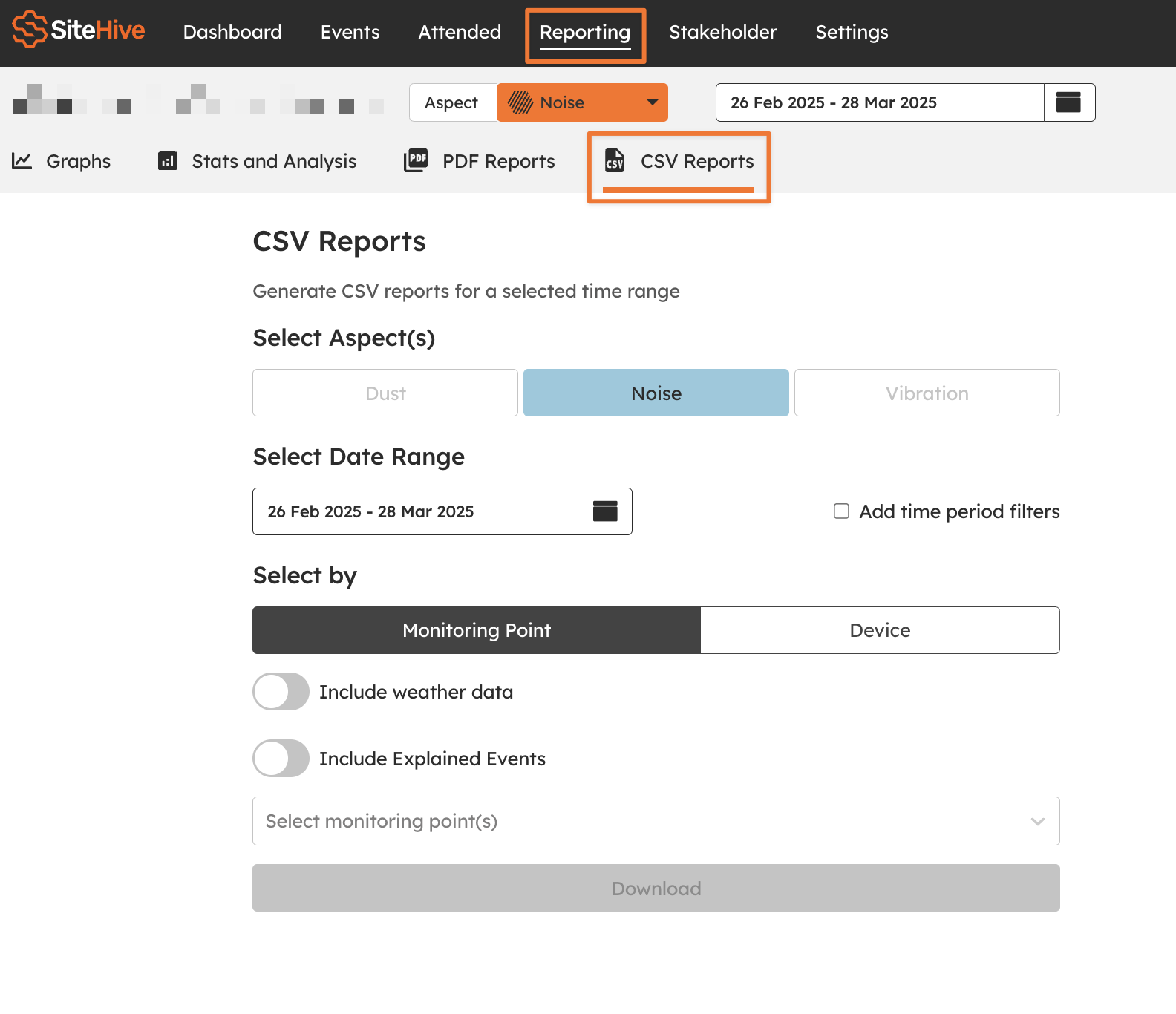
Select Data to Export
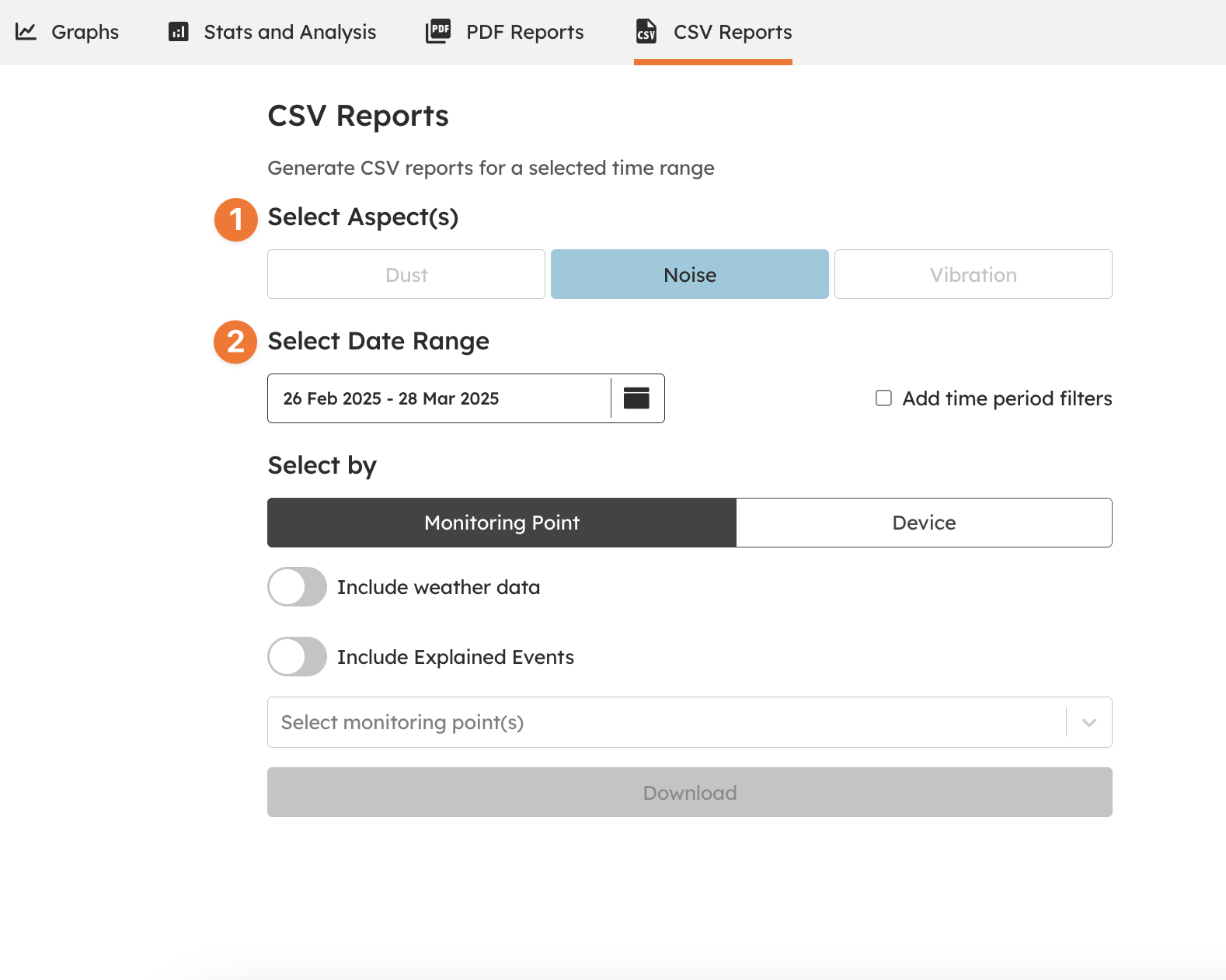
Choose the aspect(s) you want to include: Noise, Dust, or Vibration.
Select the date range for your report.
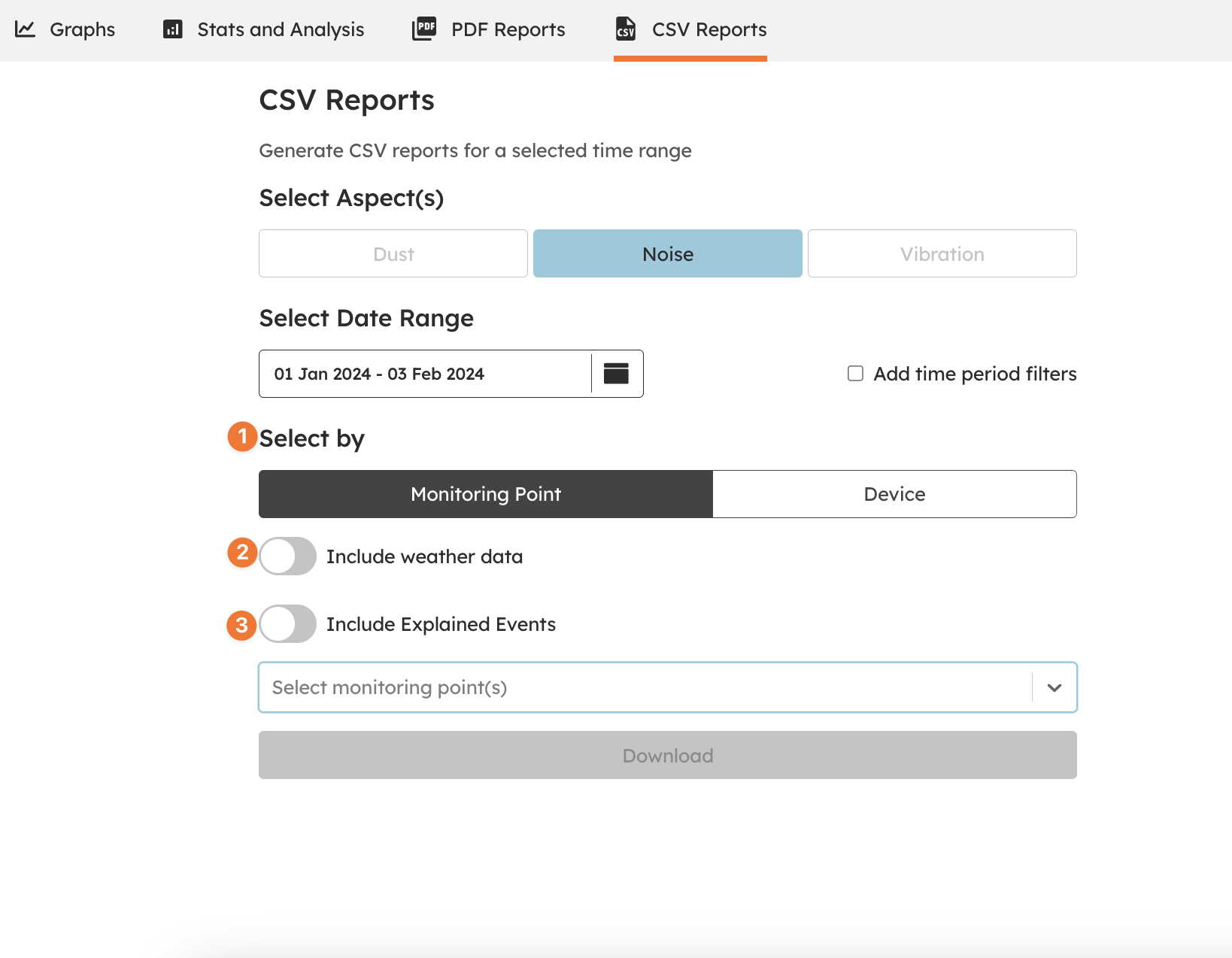
Choose How to Filter Data
You can filter data by Monitoring Point and select the monitoring point(s) you want to export.
Or you can filter data by Device and select the device(s) you want to export.
You can toggle on Include Weather Data, select your data source (OpenWeather, BOM, or your own weather station) to get rainfall, wind, temperature, humidity and dew point data.
If using SiteHive Enviro Pro you can toggle to Include Explained Events (Enviro Pro only) if you want to include events with explanations.
Download the Report
Click Download to generate and download your CSV file(s).
Explore SiteHive Enviro Reporting
For data exploration & investigation use Graph Data
To get high level stats & daily averages use Stats and Analysis
To make a comprehensive site report use Generate a PDF report
Or want simple data in an easy to use format use CSV Reports
Need Help?
We’re here to assist every step of the way! Whether you need help gathering the required details or troubleshooting, reach out to us anytime.
📧 Email: support@sitehive.com
💬 Live chat: Located on the Dashboard and Settings tab
📞 Call: 0483 924 329