
Keep Devices Online and Powered Up during winter
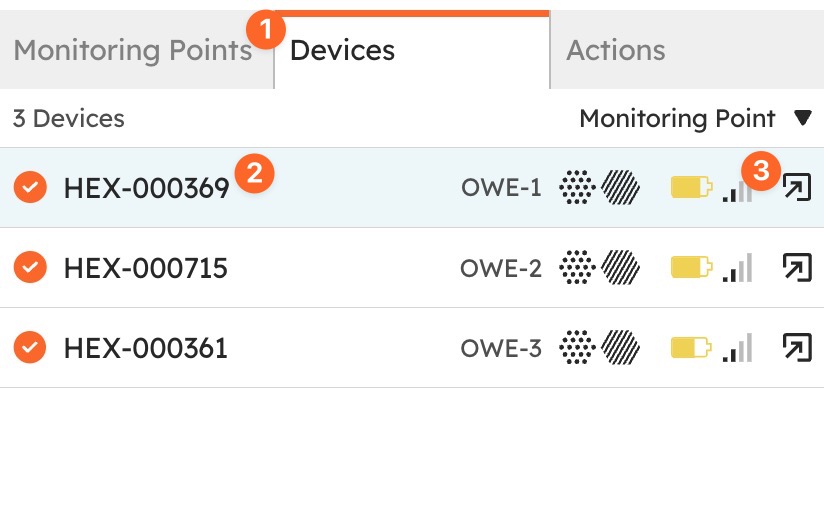
How to check your Device health on the dashboard
You can do this right from the dashboard. Here's how:
Guide: Troubleshooting an Offline Hexanode Device (how to check on the dashboard)
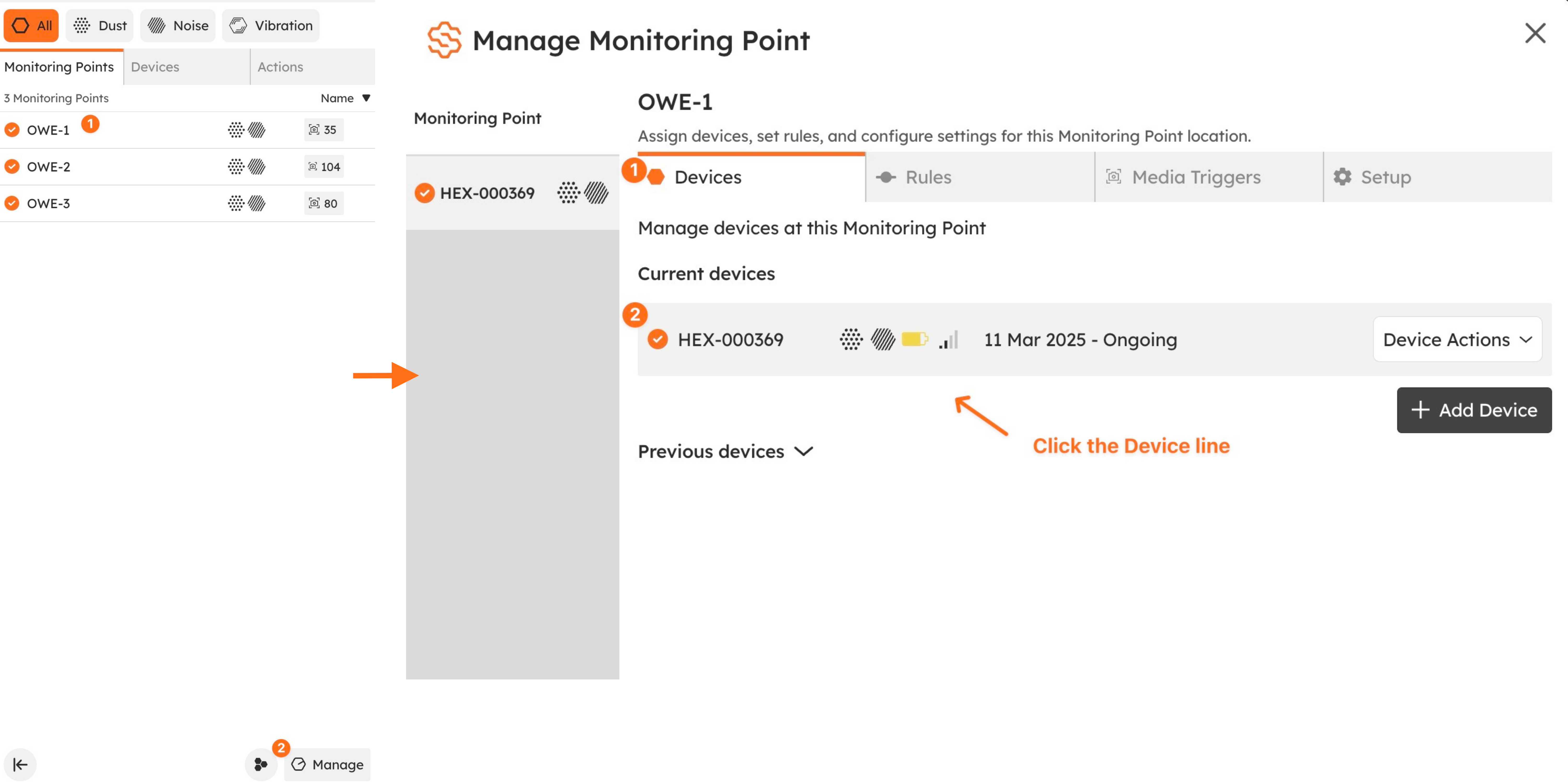
From the Monitoring Points tab:
Select the Monitoring Point
Click Manage
Switch to the Device View
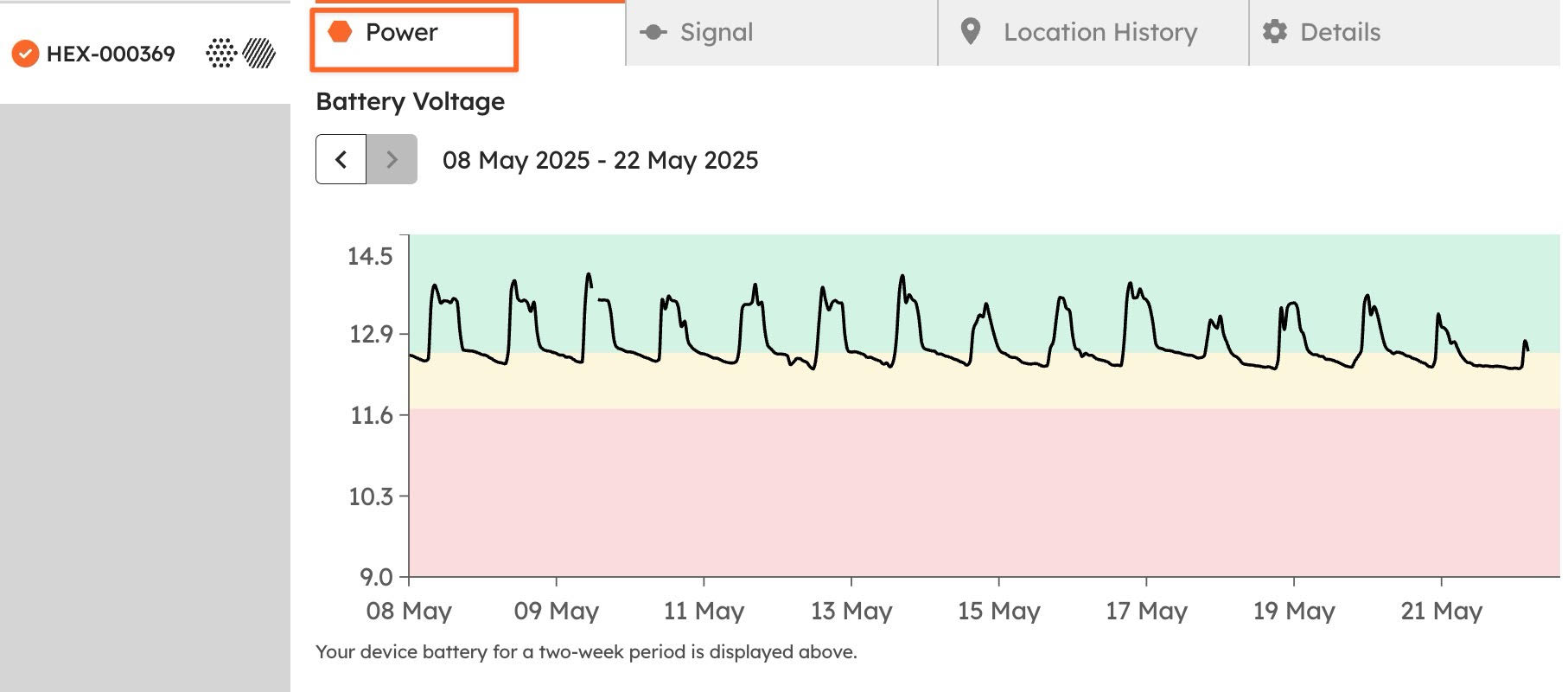
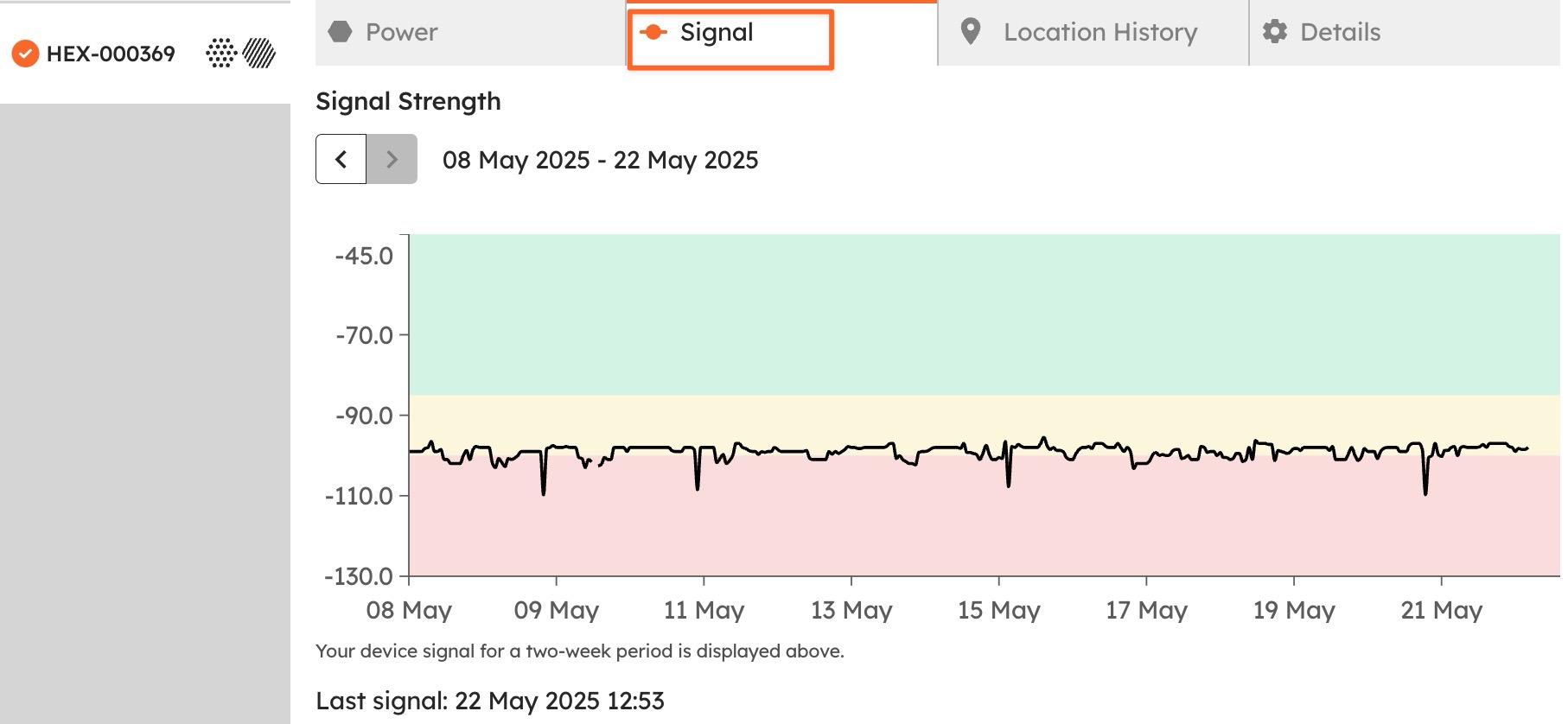
Click the device to view battery level (Power tab) and signal strength (Signal tab)
From the Devices tab:
Find your device
Click the Manage icon
Check the Power and Signal tabs for issues
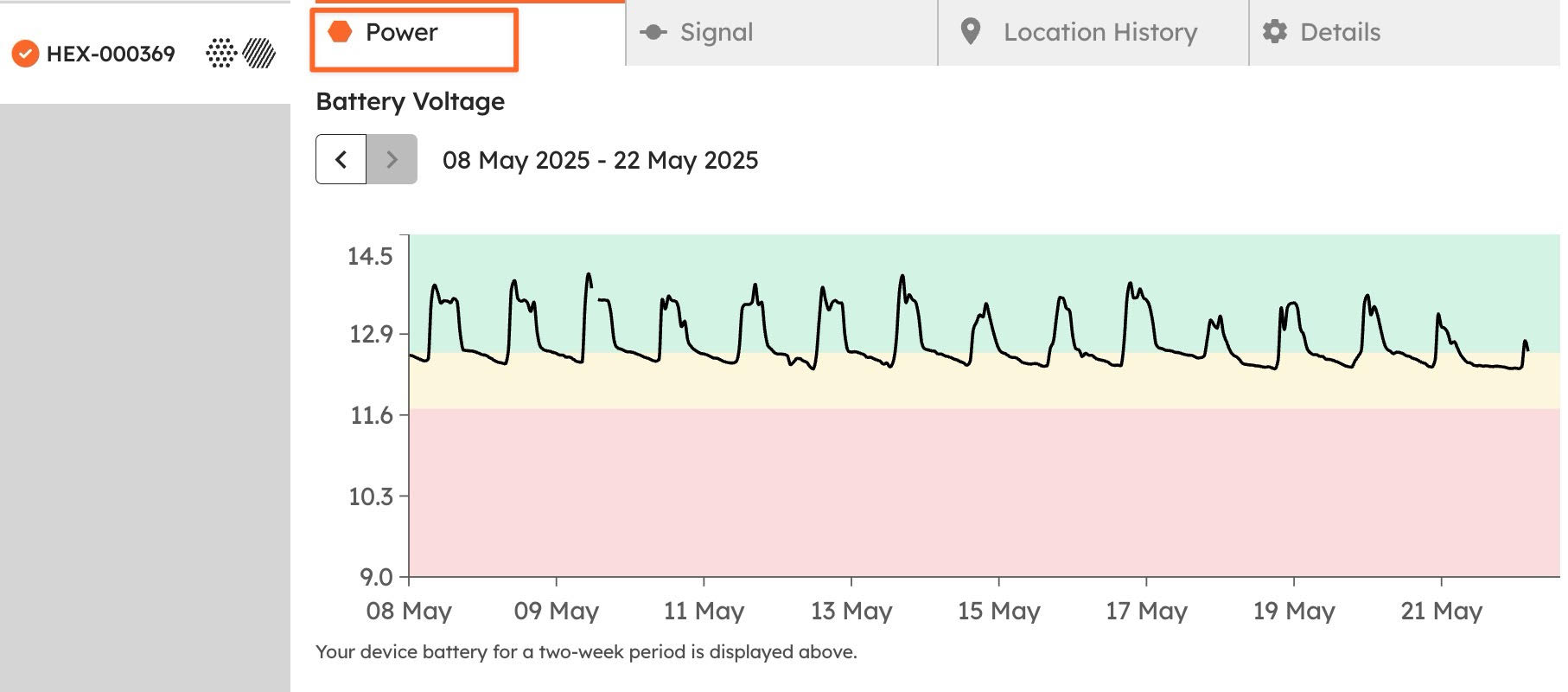
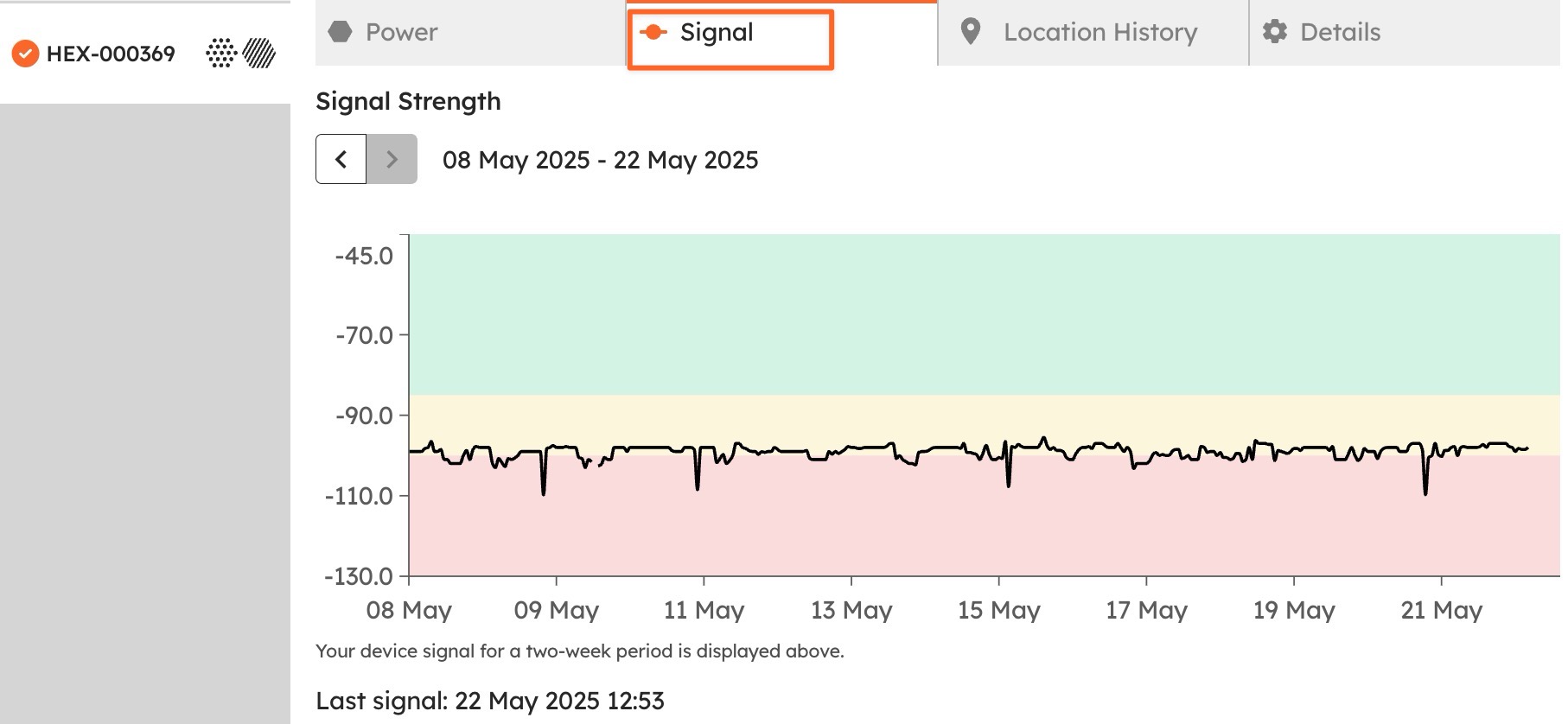
Rule of thumb - if you have a signal on your phone, then the Device should be fine.
If the signal is poor, try relocating the device to a location where you have better phone signal and is away from large amounts of concrete or metal.
Stay Notified
Set up handy alerts so nothing catches you off guard.
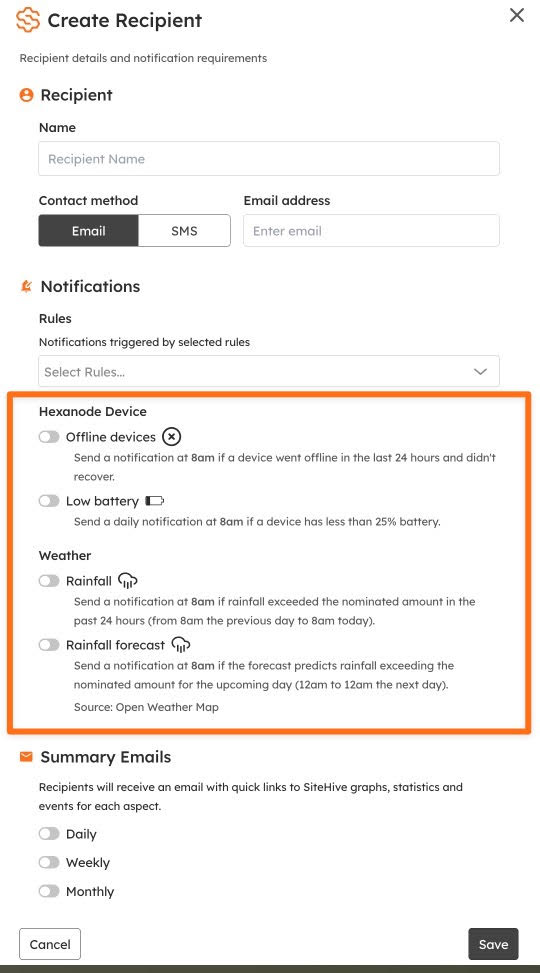
Guide: Rules & Notifications Setup
You can receive:
Offline Device Alerts: Sent at 8am if a device has been offline and didn’t recover
Low Battery Alerts: Sent at 8am if battery drops below 25%
Rainfall Alerts: From BoM stations or external source, when rain exceeds your set threshold
Just head to Settings > Rules & Notifications > Notifications to turn these on.
Troubleshooting On-Site
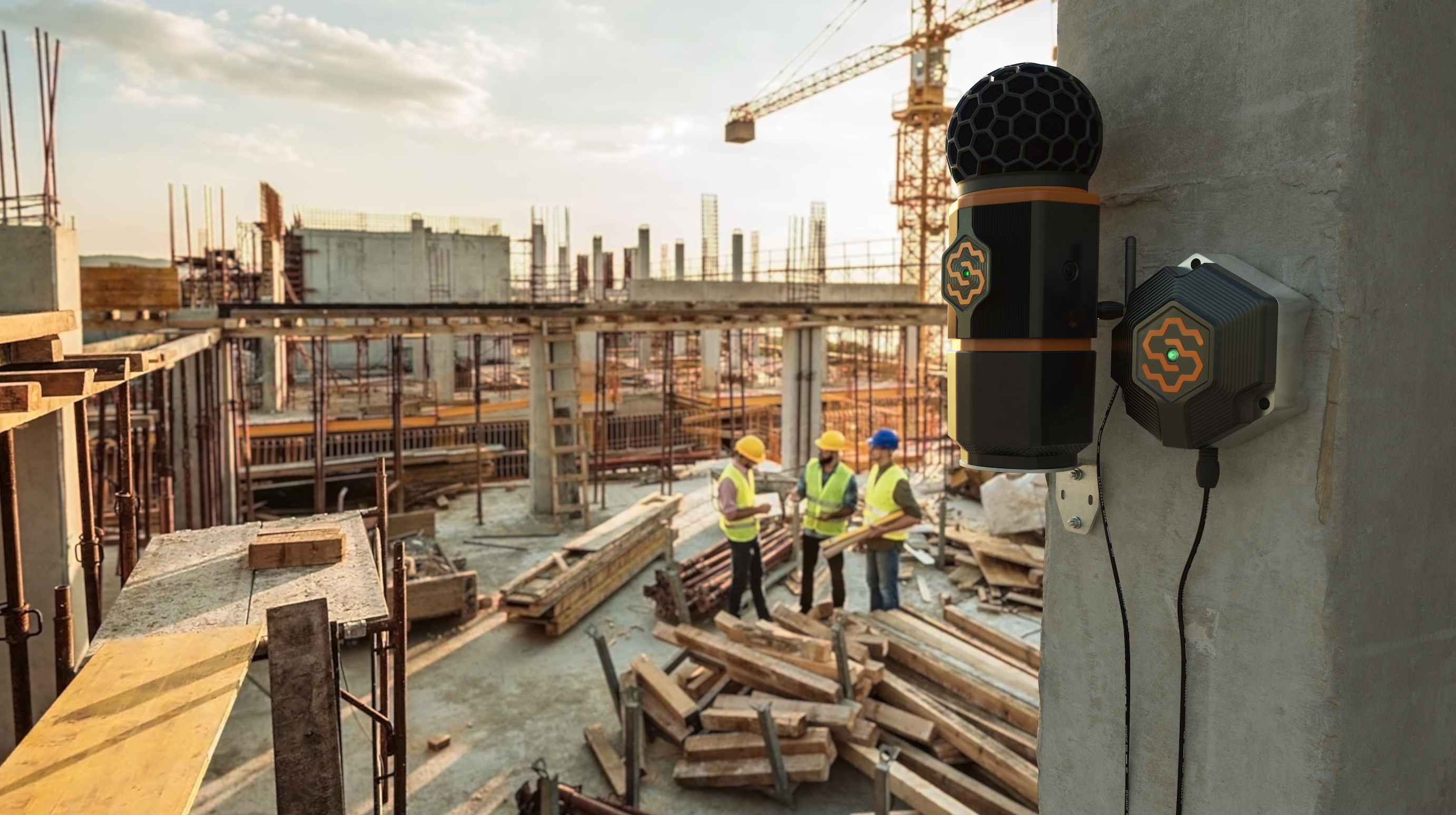
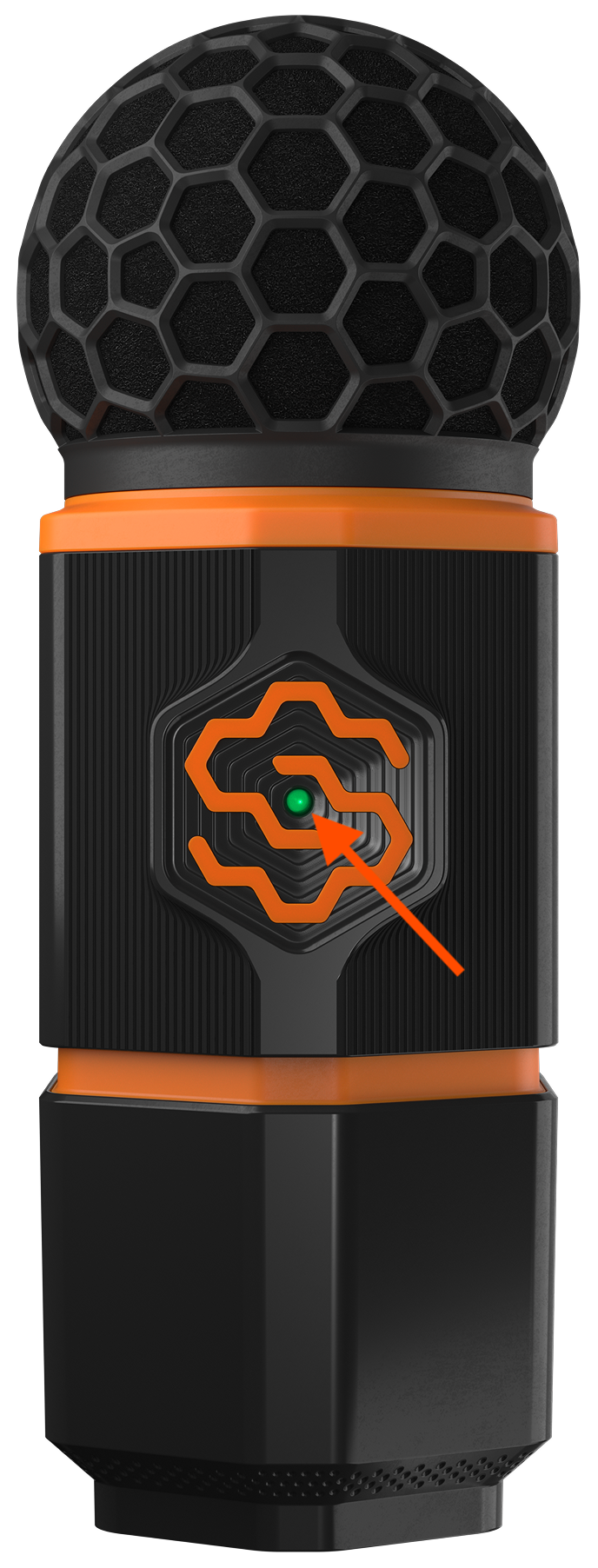
Need to diagnose a device in the field? The LED light on the SiteHive logo will tell you what's happening:
🟢 Green – Device is connected/online and recording.
🔵 Blue – Weak signal or signal dropouts causing a loss in connection. The device should still be recording locally.
⚪ White – Device is rebooting. This is normal during power-up and should only appear briefly.
⚫ No light – No power and not recording. Check that the battery is charged and all cables are firmly connected.
Quick Fix: Power Cycling the Device
If you do not see a green LED, performing a power cycle to reboot the device is a good first step:
Unplug the Hexanode from power and wait 15 seconds.
Plug it back in.
Note: During the reboot, the LED will cycle through different colours before settling on green. This process can take up to 15 minutes.
Solar Panel Setup Tips
Help your batteries charge efficiently:
Face panels North
Keep them in direct sunlight
Wipe off any dust or debris
Using Lead Acid?
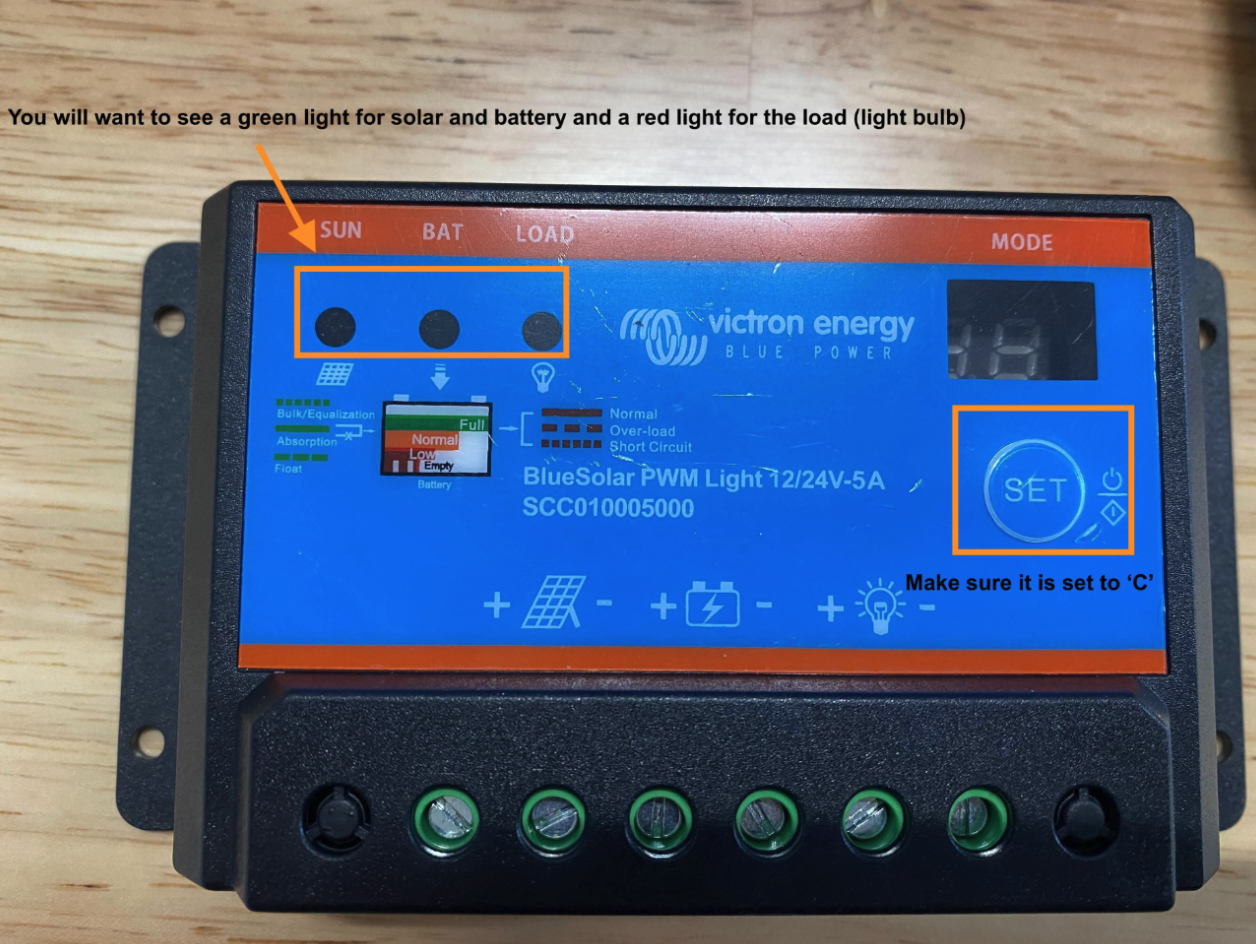
Your solar controller will help diagnose any issues:
Green 🟢 under Sun: Receiving sunlight
Green 🟢 under Bat: Battery is charged
Red 🔴 under Load: Device is active
Red 🔴 under Battery: Needs charging or a battery swap
Reset the controller:
Press Set until 'C' appears
Keep pressing if needed until it shows
Need a Backup Charger?
We've got you covered:
Lithium Battery Charger – $150 + GST (one-off)
Lead Acid Battery Charger – $150 + GST (one-off)