
Lights: what they mean and when all is good
The light in the centre of the SiteHive logo is your on-site check. Green means the device is powered, recording, and connected: you are done here and can move to the next device. This page is the one place that defines every light; the install and troubleshooting guides link here rather than repeating it.
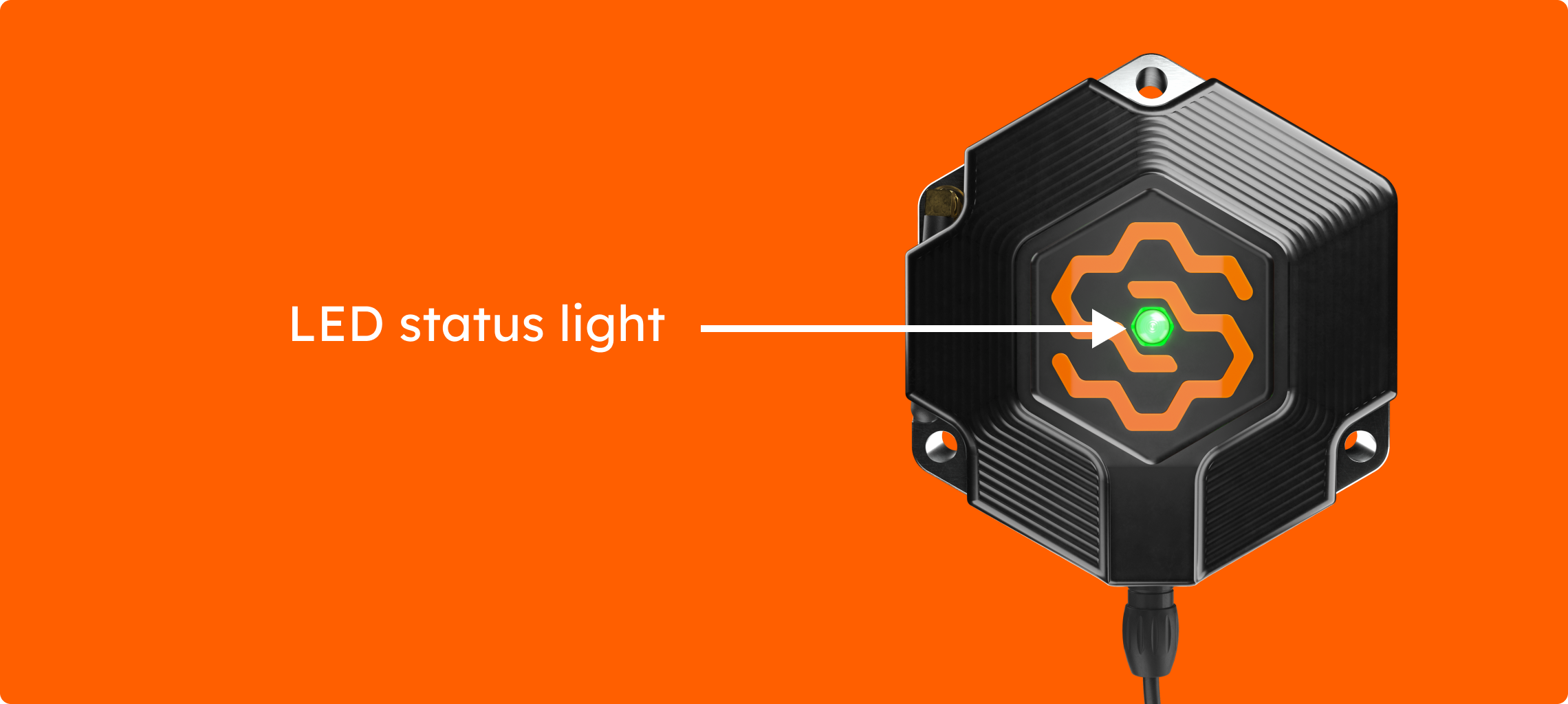
What each light means
Light |
What it means |
What to do |
|---|---|---|
Green, flashing (🟢) |
Powered, recording, and connected to the network. |
Nothing. Note the direction the logo faces, take a context photo, move to the next device. |
Blue, flashing (🔵) |
Powered and recording locally, but no connection or a weak signal. Data is stored on the device and backfills once the signal returns. |
Flip out the antenna if it has one. Move the device a little higher or away from metal and concrete. Give it a few minutes. |
White (⚪) |
Rebooting. Normal during power-up; the light may cycle through colours before settling. |
Wait. Settling on green can take up to 15 minutes after power-up. |
Red (🔴) |
Error. The device is not operating properly. |
Contact SiteHive support. The team will troubleshoot remotely, and organise a replacement if required. |
No light (⚫) |
No power. The device is not recording. |
Check the battery is charged and every cable is firmly connected, or that the mains adapter is plugged in. |
If it never goes green
A device that will not go green is easiest to fix while you are still standing next to it.
Power cycle it. Unplug the device, wait 15 seconds, plug it back in. This clears most connection problems. Allow up to 15 minutes for the light to settle.
Still blue? Signal. Check your phone has coverage at the spot; if your phone does, the device should. Move it away from large amounts of concrete or metal, or higher up the pole.
No light at all? Power. Check the battery cable at both ends, the load cable into the device, and that the battery has charge. On a lead-acid setup, read the solar controller lights below.
Still stuck? Follow If a device goes offline, or email help@sitehive.com with the device serial and a photo of the setup.
What's next
One software pass: add all your devices (after the walk, assign every device to its Monitoring Point)
If a device goes offline (checking power and signal from the dashboard)
Keep devices powered through winter (solar and battery care when the days get short)