
Check your devices are online
Once a week, take two minutes to confirm that every device is online, charged and connected.
What’s online?
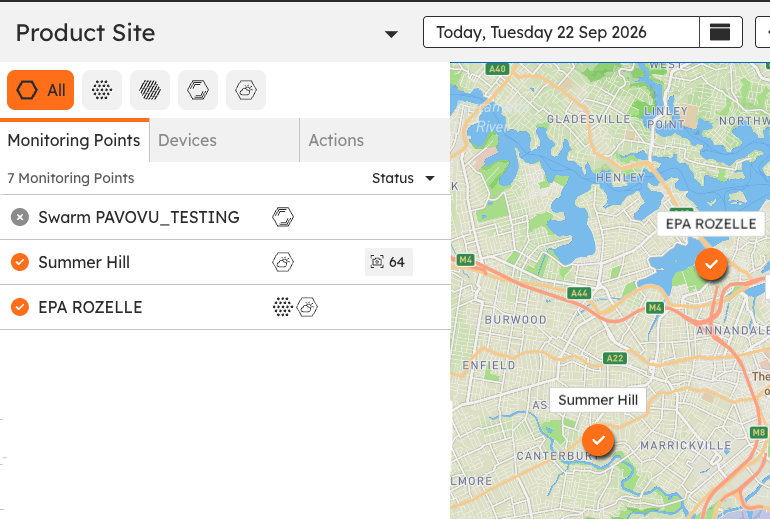
Open the Dashboard in SiteHive Enviro and choose the All Aspects view. The map shows the status of every monitoring point, so anything not reporting stands out immediately.
First glance
The side panel lists your monitoring points and devices with status symbols. At a glance, monitoring points with orange ticks are all online. Monitoring points with a grey ‘x’ or a half-orange-half grey colouring have one or more devices offline.
Check power and signal
Check power and signal on your devices via the devices view. To do this:
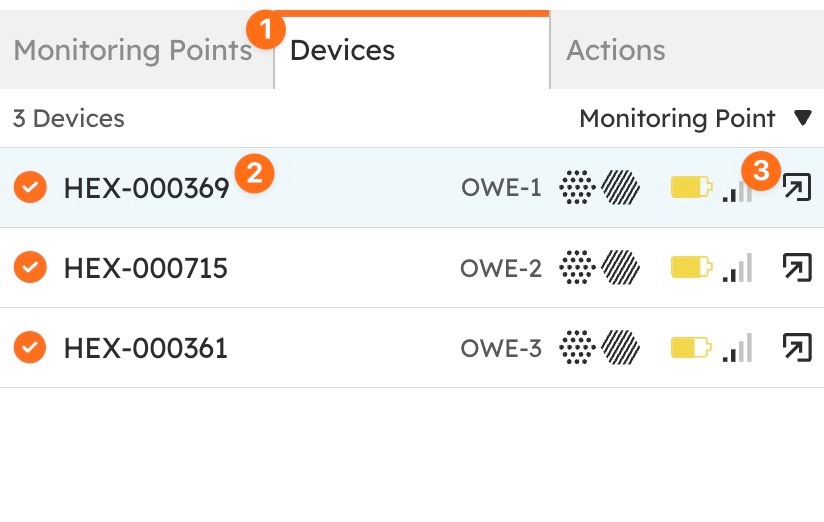
Switch to the 'Devices' view on the side panel
Select a device
Click on the battery or signal icons
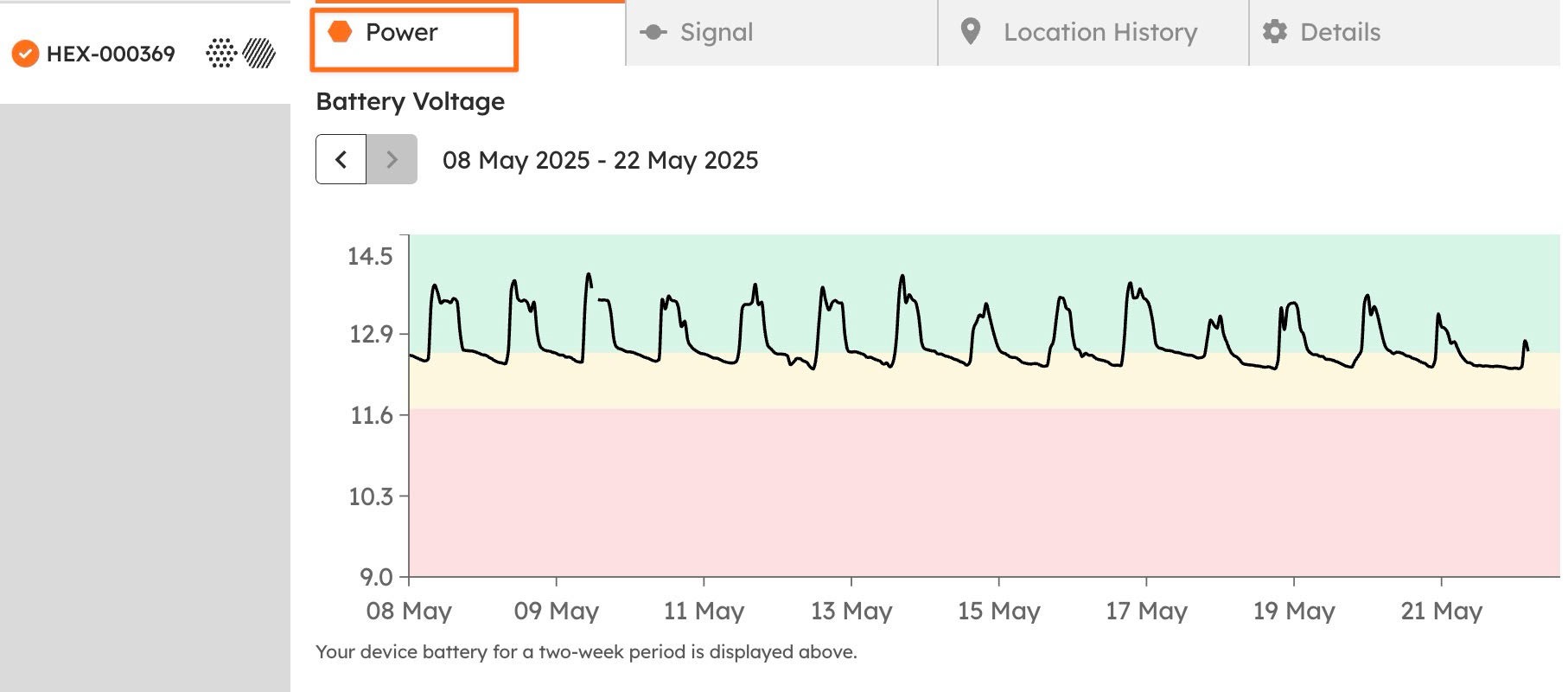
Clicking the battery icon will show a detailed view of device power.
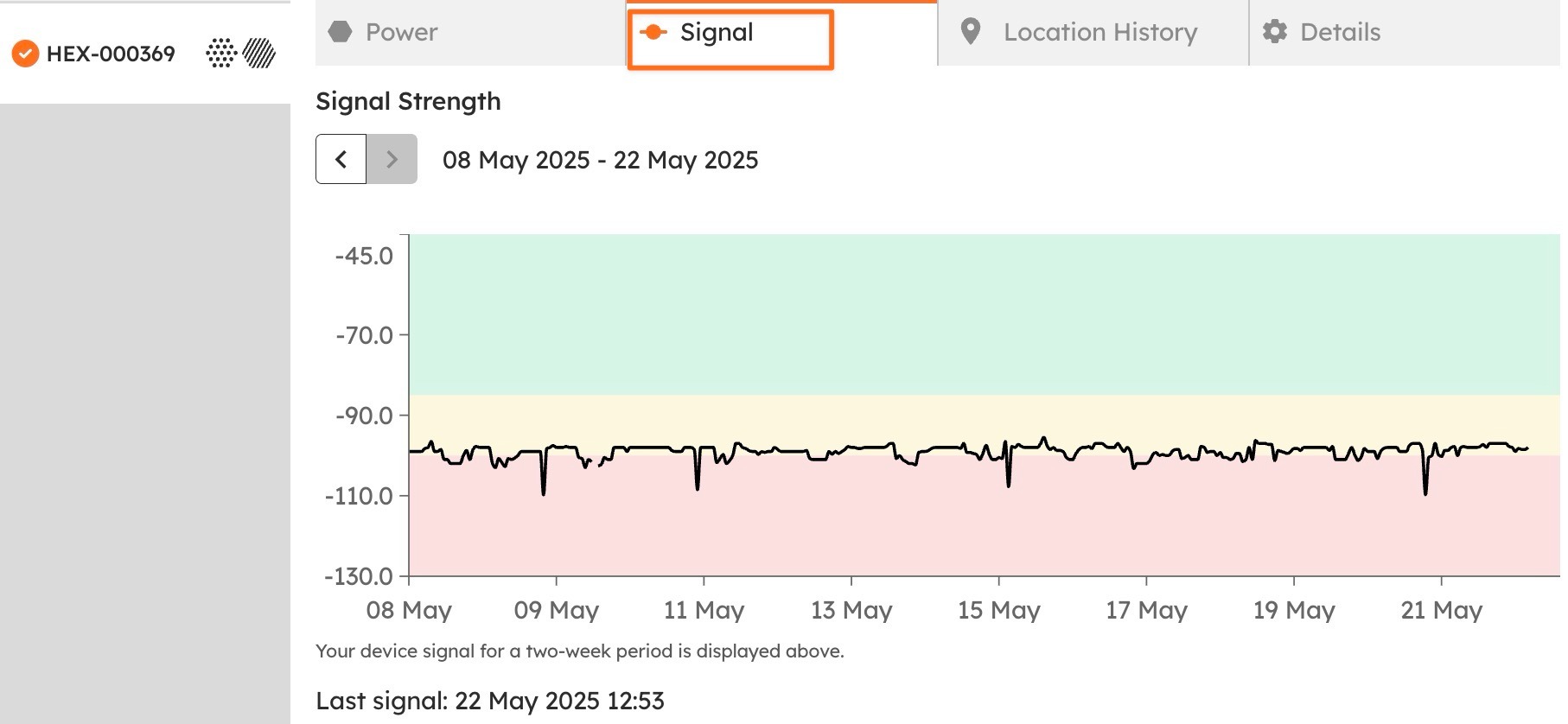
Clicking the signal icon will show a detailed view of device signal.
What healthy looks like
Battery above 25% and recovering each day on solar. A level that falls a little every day is the early warning of a shaded or dirty panel.
Signal steady, with data arriving every reporting period.
Status shown as online on the map, with the latest values at the point.
Let the alerts watch for you
Turn on the two device alerts in Settings > Rules & Notifications > Notifications:
Offline device alert: sent at 8 am if a device went offline and did not recover.
Low battery alert: sent at 8 am if a battery dropped below 25%.
How to set them up is in Set up rules and notifications.
When to act
Everything online, batteries healthy: move on to Sense check your data
Device offline: Get a device back online
Battery low or trending down: Get a device back online → Power
Online, but missing data: Contact SiteHive Support