
Water with SiteHive
💧 Real-time water and Attended Monitoring
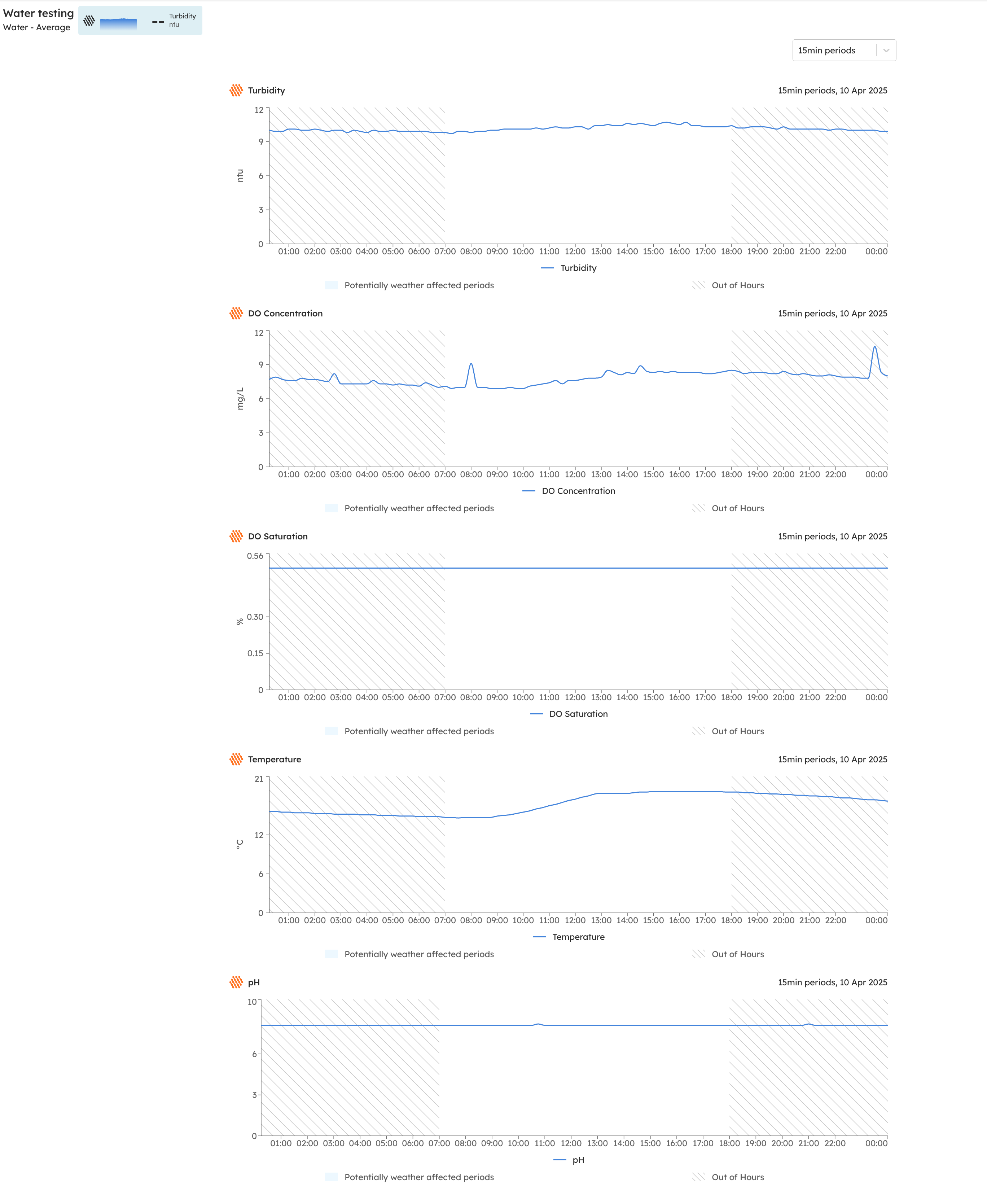
Track real-time water conditions on your SiteHive Enviro dashboard with integrated devices. Easily manage attended water data alongside other project details using our Attended app. Analyse data effortlessly with automated reports and graphs for a complete on-site overview for simplified water management on site.
🔎 Quick Search
Real-time water
Water is no longer limited to attended measurements and lab results.
You can now integrate water telemetry devices to track parameters like turbidity, pH, electrical conductivity and dissolved oxygen concentration in real time!
Contact us to get yours up and running.
Surface water monitoring
Surface water monitoring is a feature of SiteHive Attended. 👀
SiteHive processes the detailed analysis undertaken by laboratories covering hundreds of parameters, making it immediately available and useful in SiteHive. You can quickly see any non-compliant areas and take action as required.
We've worked with a range of labs, including Eurofins and ALS, to automate the processing of their results. It's as easy as forwarding us the email with the attachments you get from the lab.
Then, within seconds, they're all available and analysed against thresholds in SiteHive.

How to find the results
- The results are shown per sampled location in a new 'Lab Results' section, under 'Attended':

- From here, all the source files from the lab are quickly available in the View Files modal:
- By clicking 'Apply Thresholds' at the top of the table, each lab result can be designated as marine water or freshwater, with the relevant ANZG Guidelines then applied automatically to each measurement:


- Once applied, a table of non-compliant parameters shows clearly any measurements that are over thresholds, so you can quickly investigate further if required:
