
Setup Rules and Notifications
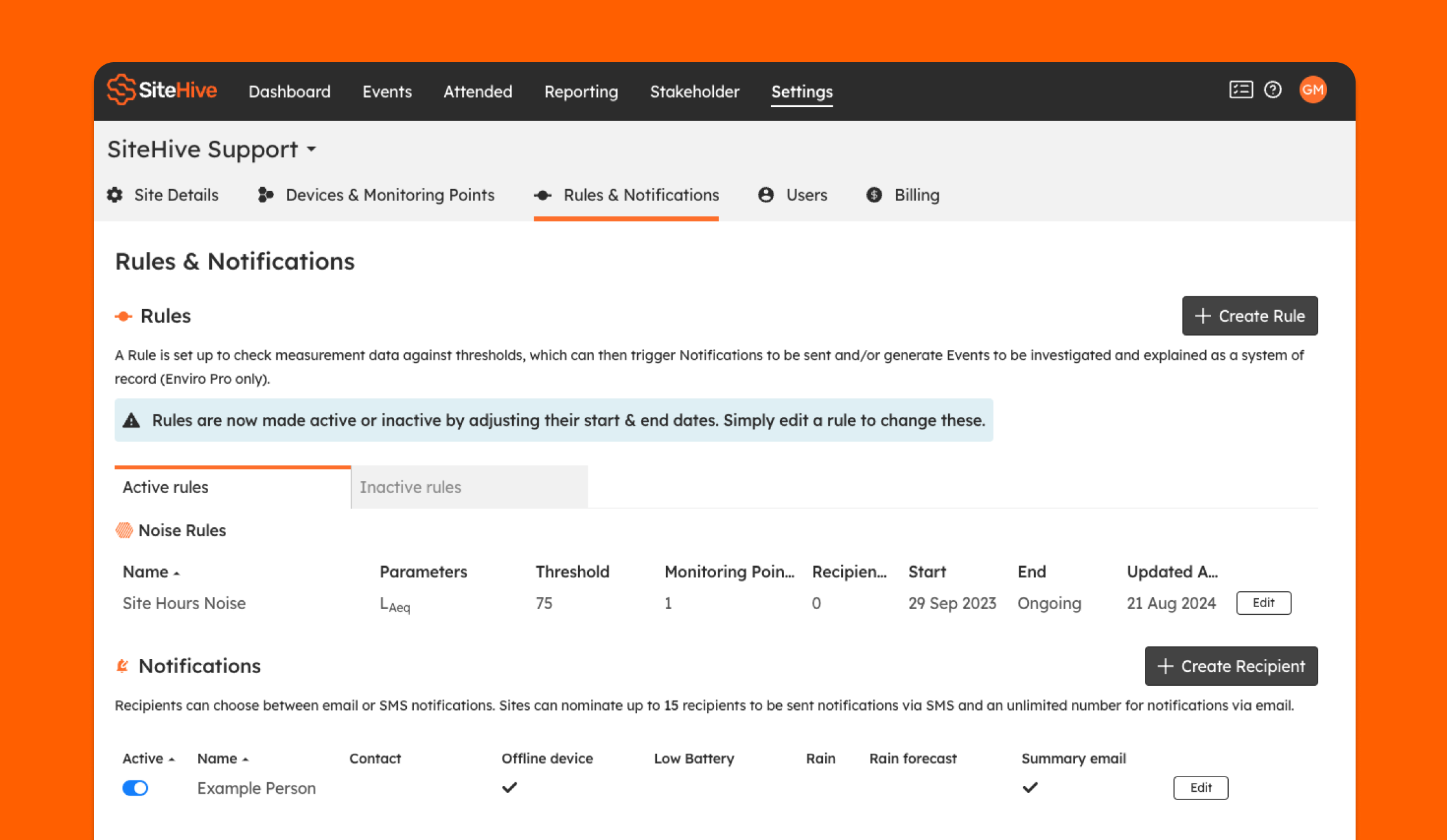
The best place to manage rules and notifications is the Settings / Rules & Notifications page.
Rules enable you to set thresholds for your data. They are visible on your graphs, can send notifications to your phone, and are the best way to be aware if readings from your site are exceeding expected values.
Notifications can be triggered by rules, but you can also set up notifications to monitor whether devices have gone offline, device battery level, or rainfall forecasts.
Create a Rule
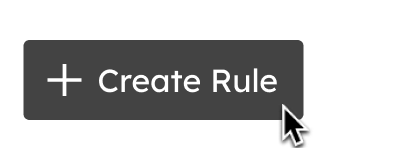
You can create a rule in a number of places in SiteHive Enviro Software, but for the best overview and control of rules go to Settings / Rules & Notifications and select the Create Rule button.
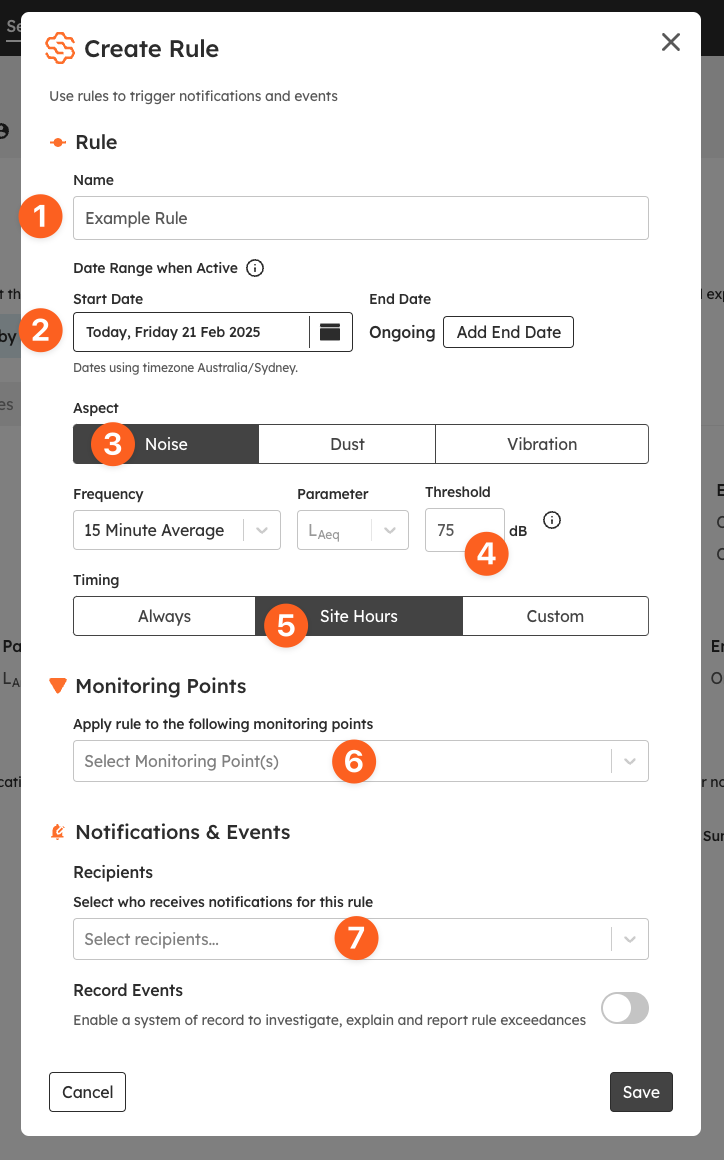
In this example we will create a common noise rule that sets a threshold of 75 dB LAeq (15 minute) during site hours. To create the rule, follow these steps:
Give your rule a name that helps communicate what it measures, as this name appears when the rule is selected and in the graph legend.
Give the rule a date range when active: simply choose a start date and leave the end date as the default of 'ongoing'. This can be edited later if needed.
Choose the aspect you are creating the rule for, in this case Noise.
Set the frequency (how often it is checked), parameter and threshold. The threshold defines what counts as an exceedance.
Set whether this rule applies to certain times of day, in this case Site Hours.
Optional: set which Monitoring Points the rule applies to.
Optional: set who receives notifications when the threshold of this rule is exceeded.
Create a Recipient for Notifications
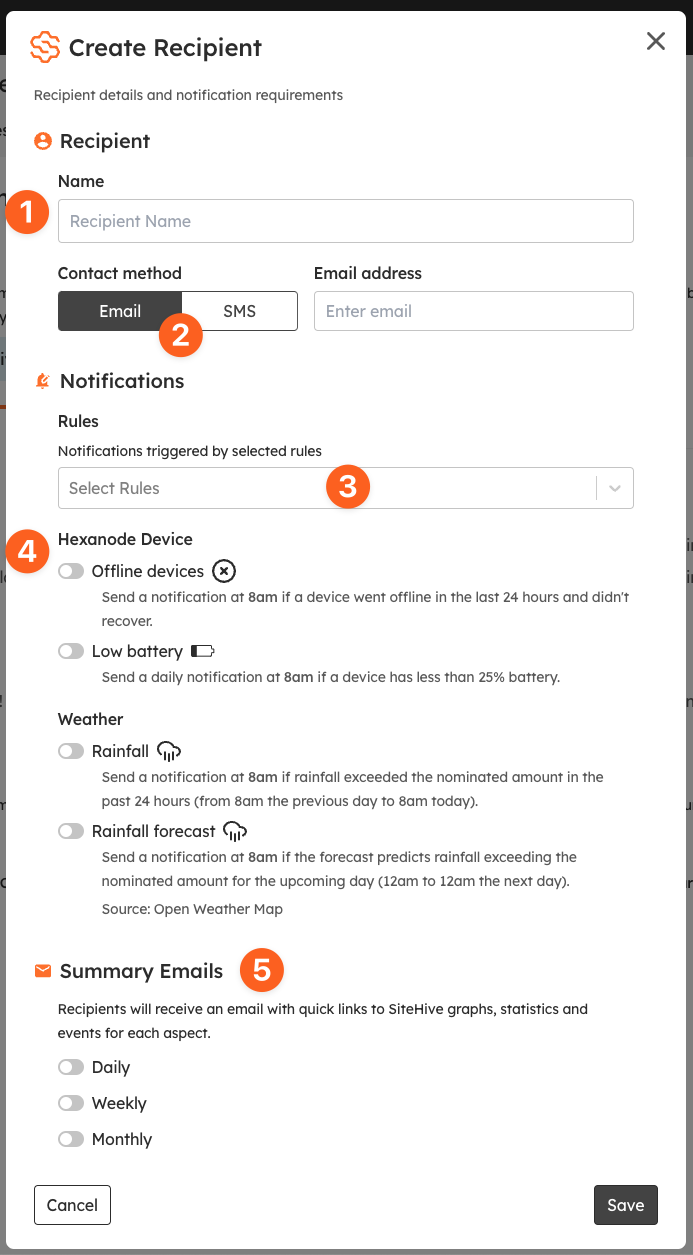
To receive notifications a person needs to be set up as a Recipient. A recipient is different from a User, and is set up purely for receiving messages via email or SMS.
Let's create a recipient. Go to the Settings / Rules & Notifications page:
Name: simply use the person's first and last name.
Choose whether this person will receive Email or SMS notifications. If they need both, add them as two recipients: one for email, one for SMS.
If applicable, choose which Rules they will receive notifications for.
Choose whether they need notifications based on device status or weather predictions.
Finally, choose whether the person wants email summaries (this is only an option if the recipient is set up for Email).
SiteHive Enviro Pro Features
If you're using SiteHive Enviro Pro, you can unlock even more functionality and create Events triggered by rules, which can be categorised and explained in a system of record. To find out more, see Events.
What’s next
Events (record and explain every exceedance, on Enviro Pro)
Graph Data (see your rule threshold lines on the graphs)
New to SiteHive Enviro? SiteHive Enviro - Start Here (the five quick setup steps)