
Set up media triggers
Media triggers set the level a Hexanode must reach before it captures media, so every photo, audio clip and vibration waveform ties to the peak moment in each media period.
Set up media triggers
Your SiteHive Hexanode devices capture media at the peak moment of every media period, so the photos, audio and waveforms you see always show what was happening at the height of activity.
For each Monitoring Point, you can control two things:
Media trigger: set the minimum level a device must reach before it captures media, so you choose how much media your site collects. Only available for Noise.
Image and audio capture: turn photos and/or audio recording on or off, for example where privacy or site rules mean you can't record audio.
Both are set in the same place, on the Media Triggers tab of the Manage window.
ℹ️ The default media period is 15 minutes for Noise, Dust, Weather, Noise+Dust and Weather+Dust Hexanodes, and 1 minute for Hexanode Vibration.
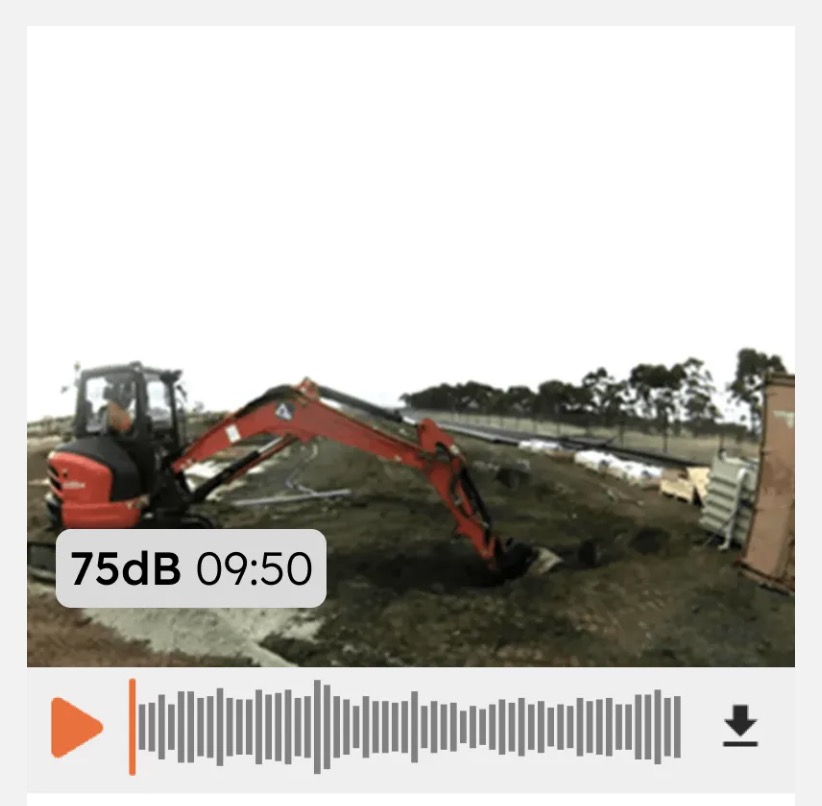
How media capture works
In each media period, your device tracks the highest level it measures and captures media tied to that moment:
Noise: one directional image and a 6-second audio clip, running from 3 seconds before the peak to 3 seconds after
Dust: two images, one in each direction
Weather: one directional image and a 6-second audio clip
Vibration: a 3-second velocity waveform at 1-millisecond resolution, running from 1 second before the trigger to 2 seconds after
For more on what each device type captures, see Media timeline: the photos and audio your devices capture.
Media capture on combination devices
When a Hexanode monitors more than one aspect, a single aspect decides the peak, in this order of priority: noise, then dust, then weather.
A Noise+Dust Hexanode captures media at the noise peak.
A Weather+Dust Hexanode captures media at the dust peak.
Noise media trigger
The noise media trigger is a minimum LAmax level, 55 dB by default. If the loudest moment in a media period doesn't reach it, no media is captured for that period.
Lower it (for example to 45 dB) to capture media on quieter sites, or during quieter hours.
Raise it (for example to 70 dB) to capture media only when works are loud.
Vibration media trigger
The vibration media trigger is an instantaneous peak velocity level, set in mm/s. When vibration exceeds the trigger, the Hexanode Vibration captures a waveform at the highest peak in that 1-minute media period. The waveform is 3 seconds of velocity data at 1-millisecond resolution, from 1 second before the trigger to 2 seconds after.
Waveforms show the shape of a vibration event, which helps you tell a sharp impact (such as piling or a dropped load) from continuous vibration (such as a roller or plant idling nearby).
How to set up media
Before you start: make sure the Monitoring Point is already set up on your project (Add a device with Easy Setup).
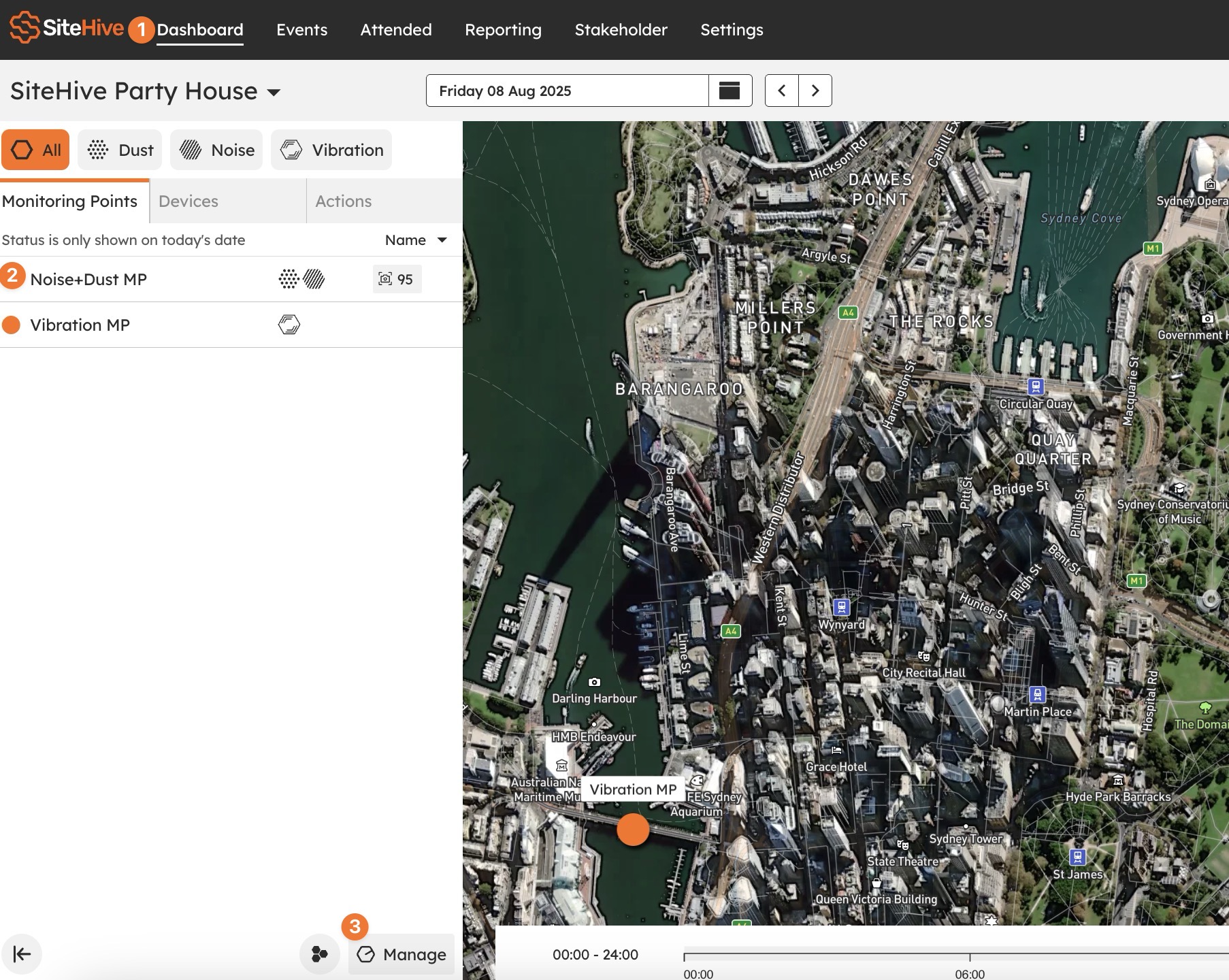
On the Dashboard, open the side panel.
Click the Monitoring Point you want to adjust.
Click Manage.
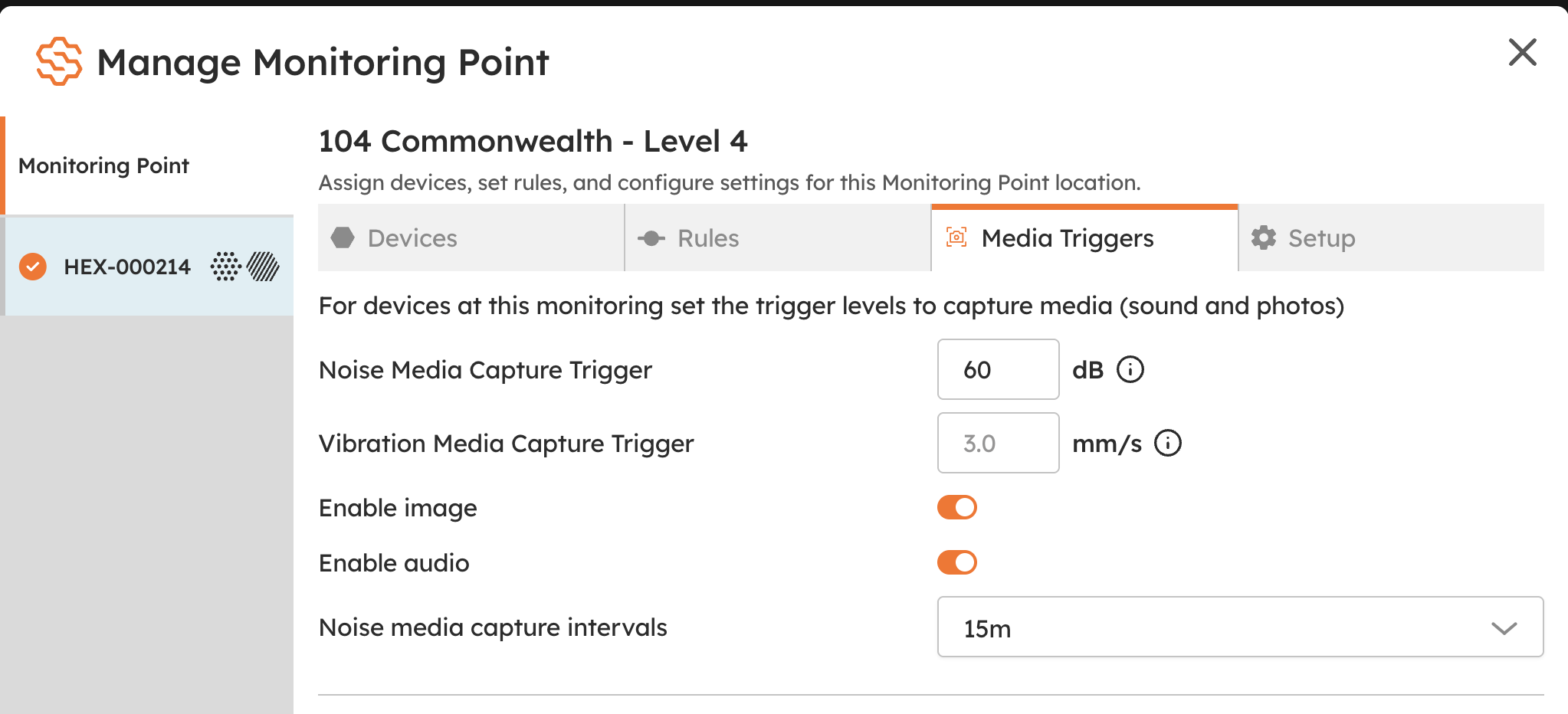
Select the Media Triggers tab.
Enter your Noise Media Capture Trigger in dB (LAmax). For a Hexanode Vibration, enter the Vibration Media Capture Trigger in mm/s.
Optional: use the Enable image and Enable audio switches to turn either kind of capture off at this Monitoring Point.
Click Save.
The same tab has Enable image and Enable audio switches if you want to turn off either kind of capture at this Monitoring Point.
💡 Triggers are set per Monitoring Point, so repeat these steps for each one on your project.
FAQs
Why is there no media for some periods?
The peak in that period didn't reach your media trigger. This is most common overnight or on quiet days. Lower the trigger if you want media for those periods.
Why is the level on a photo different from the graph?
The level shown on the media is the peak moment in the media period. Your graphs show the average across the period, so the media label will often be higher.
Do media triggers cost more power or data?
Media capture is designed to stay within your device's normal power and connectivity limits. Media is uploaded within 5 minutes of capture.
What's next
Media timeline: the photos and audio your devices capture (what each device type captures, and where to find it)
Click Manage to adjust settings and devices (everything else in the Manage window)
Set up rules and notifications (get told when a level is exceeded)