
Omit data from a report
Omit Data removes a Monitoring Point's data from graphs, statistics and reports for a period you choose, without deleting anything. This allows omission of erroneous data from unnecessarily skewing graphs e.g. vibration spikes during device installs.
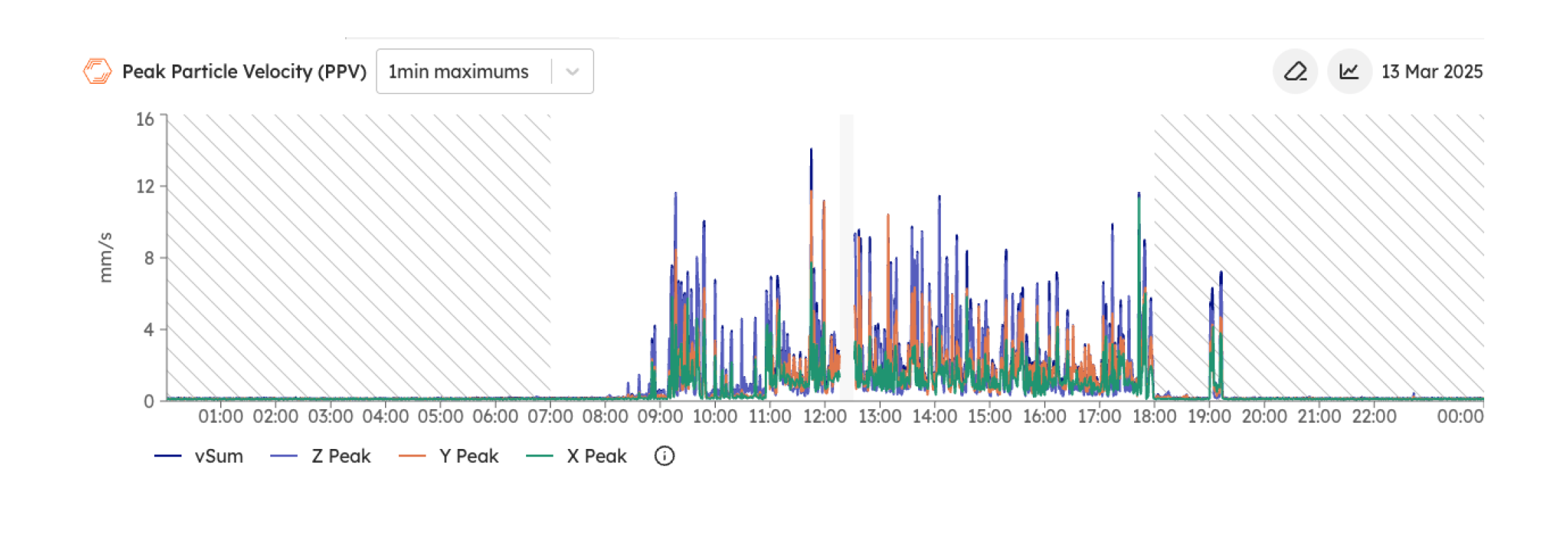
Omitted data is excluded from graphs and calculations: the period shows as a gap, and every statistic is worked out as if that data were not there. The data itself is kept. Remove the Omit Data entry at any time and the original readings come back into view.
Omit data from the Dashboard graph
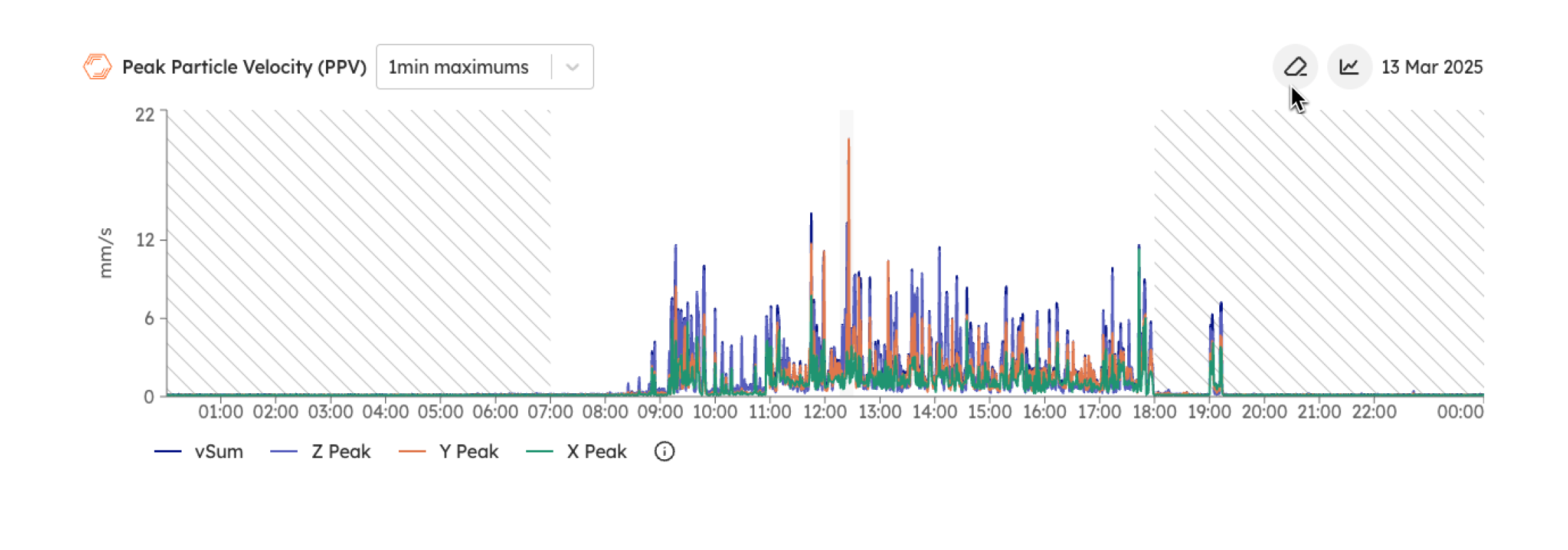
On the Dashboard graph (or the timeline at the bottom of the screen), select the time period you want to omit.
Click the Omit Data button.
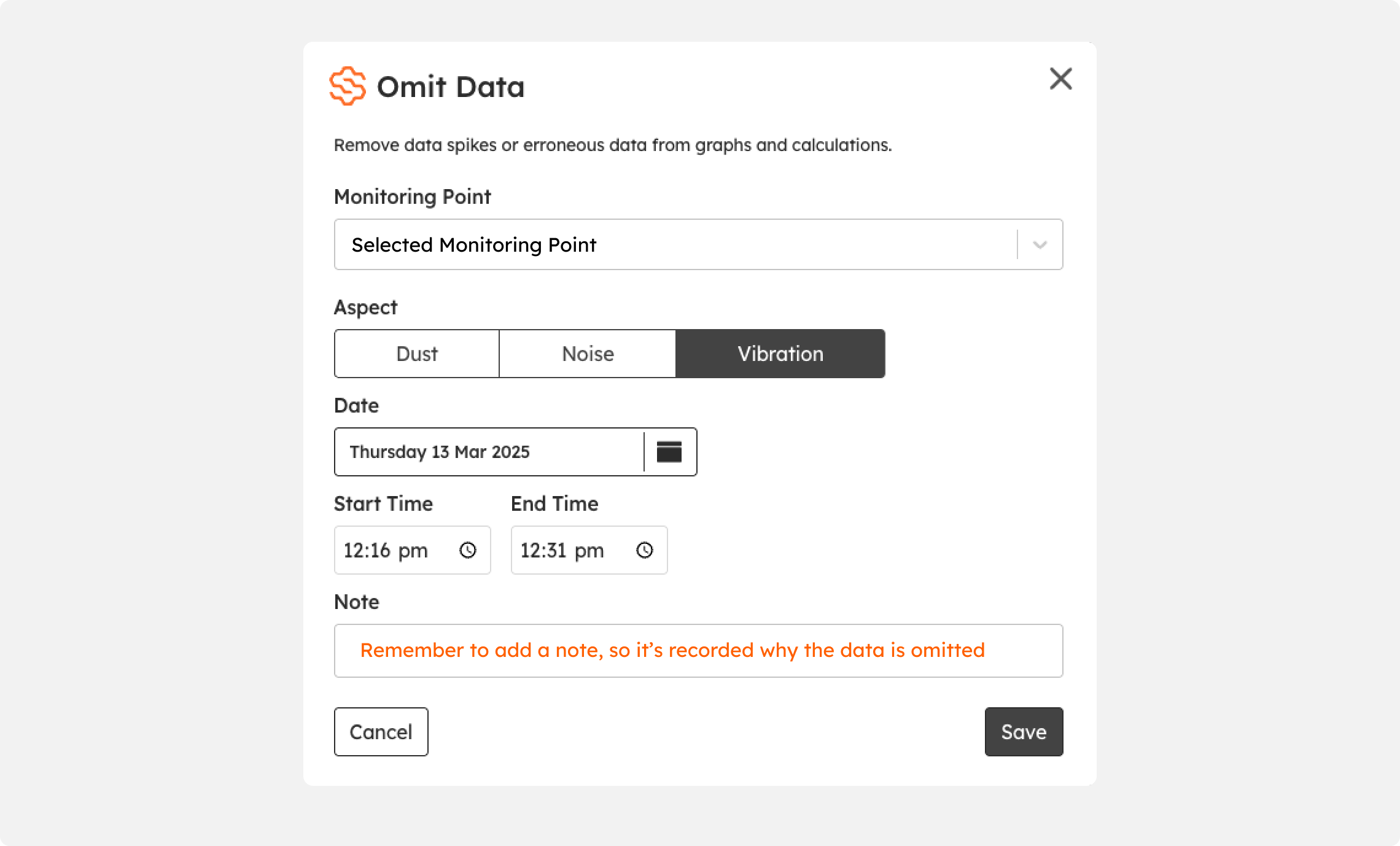
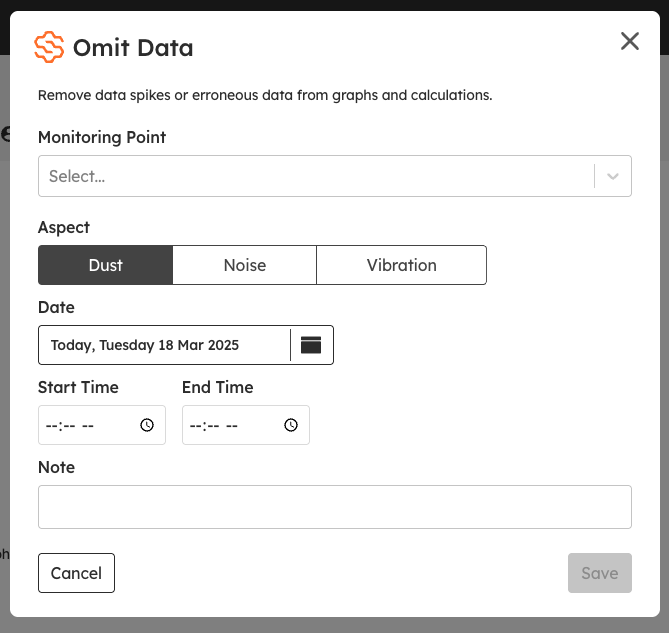
In the window that opens, check the Monitoring Point, aspect, date and start and end times, and write a note saying why the data is being omitted.
Click Save. The graph updates and shows a gap where the data has been omitted.
Review Omit Data entries in Settings
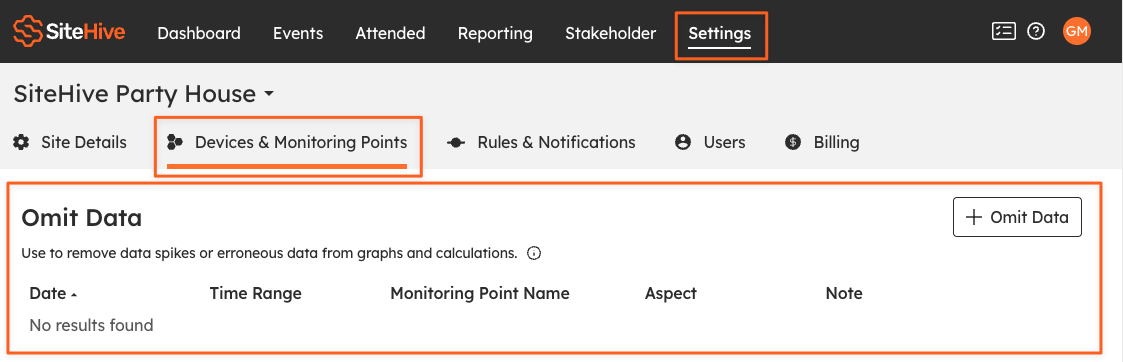
The main place to manage and audit Omit Data entries is Settings > Devices & Monitoring Points. Scroll down to the Omit Data section to review existing entries, add new ones with + Omit Data, or delete them.
The Omit Data window
Whichever way you open it, the window asks for the Monitoring Point, the aspect (Dust, Noise or Vibration), the date, a start and end time, and a note.
Always write a meaningful note. It is the record of why the data was omitted, and what you will need when the omission is queried later.
One entry per day. Omit Data is designed for short periods, so to omit data across several days make a separate entry for each date.
What's next
Events: investigate an exceedance (explain an exceedance instead of removing it)
Graph your data (the graph and time filter this starts from)
Create a PDF report (reports are built from the data with omissions applied)