
Your first login to SiteHive Enviro
This page gets you started with SiteHive Enviro Software: set up your first device, create alerts, explore the Dashboard and Reporting, and invite your team.
SiteHive Enviro makes it easy to see and manage what's happening across your site in real time, from wherever you are.
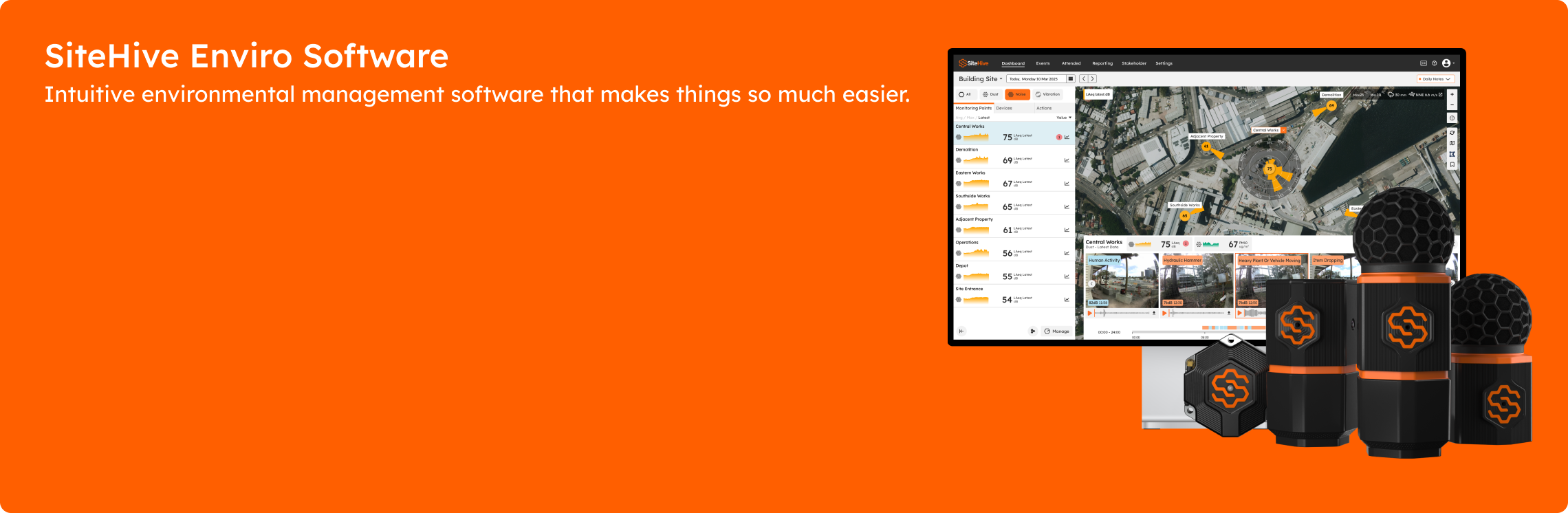
New to SiteHive Enviro Software?
Get familiar with key features by completing these five quick steps:
Set up a device: Have a new device on-site? Add it to SiteHive Enviro Software using Easy Setup, then manage all your devices and monitoring points from the Dashboard.
Create notifications: Need alerts? Create a Rule and configure email or SMS notifications in Settings > Rules & Notifications.
Explore and report: View daily data on the Dashboard. For long-term trends, use the Reporting page to analyse graphs and stats, and generate PDF reports.
Invite a user: Need to give team members access? Invite them as a new User on the Settings > Users page.
Access via a mobile device: Want SiteHive Enviro anywhere, anytime? Install the web app on your phone: it takes less than a minute to do.
Dashboard
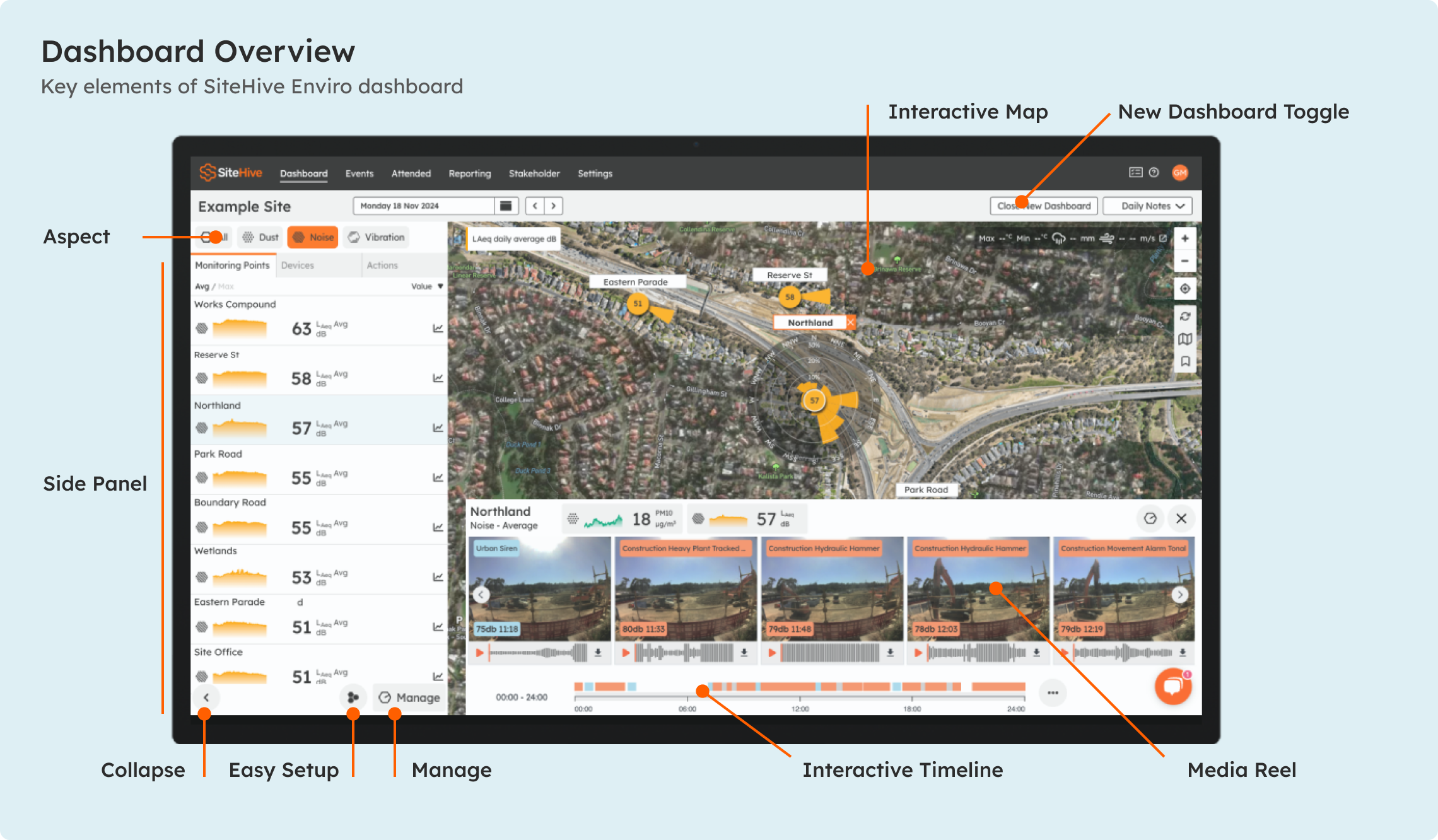
The Dashboard presents all the information you need for the daily monitoring of your site. For a complete overview of Dashboard features, explore the Dashboard Overview.
Easily explore today's data, and previous dates
Site map with live data on the map
Graphs and data
Media timeline & timeline filtering
Reporting
The Reporting page lets you investigate and report on data from your site. For a complete overview, visit Reporting Overview.
Settings
Go to Settings to manage these aspects of your site.
Site Details
Setting up on-site
Deploying a device physically? Start with the On-site Introduction, choose the right Power and Battery Options, and if a device drops out, see Troubleshooting an Offline Hexanode Device.
Going further
Managing multiple sites? The Portfolio page shows all your sites in one place. To unlock advanced capabilities, see the SiteHive Enviro Pro - Overview.
Can't find what you need? Browse the categories in the sidebar, or reach us on the live chat in the Dashboard.